Introducing Workspace Databases
Tabular Editor 3.0 supports editing model metadata loaded from disk with a simultaneous connection to a database deployed to an instance of Analysis Services. We call this database the workspace database. Going forward, this is the recommended approach to tabular modeling within Tabular Editor.
This makes the development workflow a lot simpler, since you only need to hit Save (Ctrl+S) once, to simultaneously save your changes to the disk and update the metadata in the workspace database. This also has the advantage, that any error messages returned from Analysis Services, are immediately visible in Tabular Editor upon hitting Save. In a sense, this is similar to the way SSDT / Visual Studio or Power BI Desktop does, except that you are in control of when the workspace database is updated.
When you load a model from a Model.bim file or folder structure, you will see the following prompt:
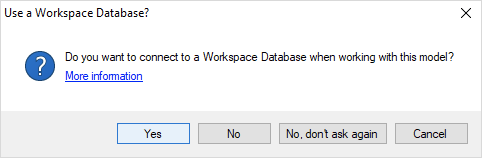
- Yes: Model metadata is loaded from disk and then immediately deployed to an instance of Analysis Services. Tabular Editor will then connect to the newly deployed database. The next time the same model is loaded from disk, Tabular Editor will redeploy and connect to the database automatically.
- No: Model metadata is loaded from disk into Tabular Editor as usual, without connecting to an instance of Analysis Services.
- No, don't ask again: Same as the option above, but Tabular Editor will not ask again the next time the same model is loaded.
Setting up a Workspace Database
When you select the "Yes" option in the prompt shown above, you will be asked for a servername and (optional) credentials to an instance of Analysis Services. Hitting "OK" will show you a list of databases already on the instance. Tabular Editor assumes that you want to deploy a new database and provides a default name for the new database, based on your Windows username and the current date and time:
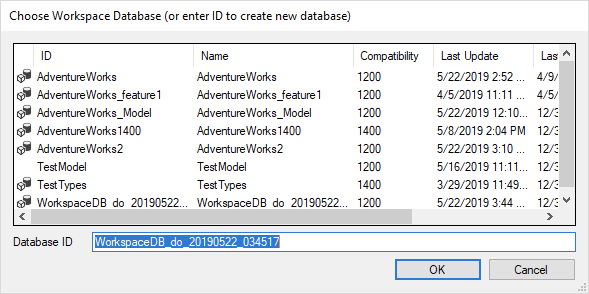
If you want to use and existing database as your workspace database, simply select it on the list. Warning: If you choose an existing database, it will be overwritten with the metadata of the model loaded from disk. For this reason it is not recommended to set up workspace databases on a production instance!
The User Options file (.tmuo)
To track the workspace settings for each model in your file system, Tabular Editor 3.0 introduces a new file of type .tmuo (short for Tabular Model User Options), which will be placed next to the Model.bim or Database.json file.
The .tmuo file is just a simple JSON document with the following content:
{
  "UseWorkspace": true,
  "WorkspaceConnection": "Data Provider=MSOLAP;Data Source=localhost",
  "WorkspaceDatabase": "AdventureWorks_WS_Feature123"
}
When loading model metadata from disk, Tabular Editor looks for the presence of a .tmuo file within the same directory as the loaded model file. The name of the .tmuo file must follow the pattern:
<modelfilename>.<windowsusername>.tmuo
The reason that the file contains a username, is to prevent multiple developers from inadvertently overwriting each others workspace databases in parallel development workflows. If the file is present and the "UseWorkspace" flag in the file is set to "true", Tabular Editor will perform the following steps when loading a model from disk:
- Deploy the model metadata to the workspace database (overwriting existing metadata), using the server- and database name specified in the .tmuo file.
- Connect to the newly deployed database in "workspace mode".
When in "workspace mode", Tabular Editor simultaneously saves your model to disk and updates the workspace database, whenever you hit Save (ctrl+s). This lets you rapidly test new code and see error messages provided by Analysis Services, without having to manually deploy the database or invoking File > Save As... or File > Save to Folder... whenever you want to persist model metadata to disk.
Incremental Refresh Expression Change Detection
When opening a model with a workspace database, Tabular Editor compares the local incremental refresh Source Expression and Polling Expression with those on the workspace database, for each table governed by a BasicRefreshPolicy.
If Tabular Editor detects differences, it prompts you to overwrite the workspace database expressions with your local version. This prevents accidental loss of expression changes, which is particularly important when collaborating via Git where multiple developers may modify these expressions independently.
Tip
If you are working in a team and notice the prompt appearing frequently, coordinate with your team members to ensure incremental refresh expressions are not modified independently in different branches.