Connect to Databricks
The Databricks connector connects to SQL warehouses and clusters in Azure Databricks and in Databricks workspaces on other clouds. It's available only as an implicit data source (see Legacy, structured and implicit data sources).
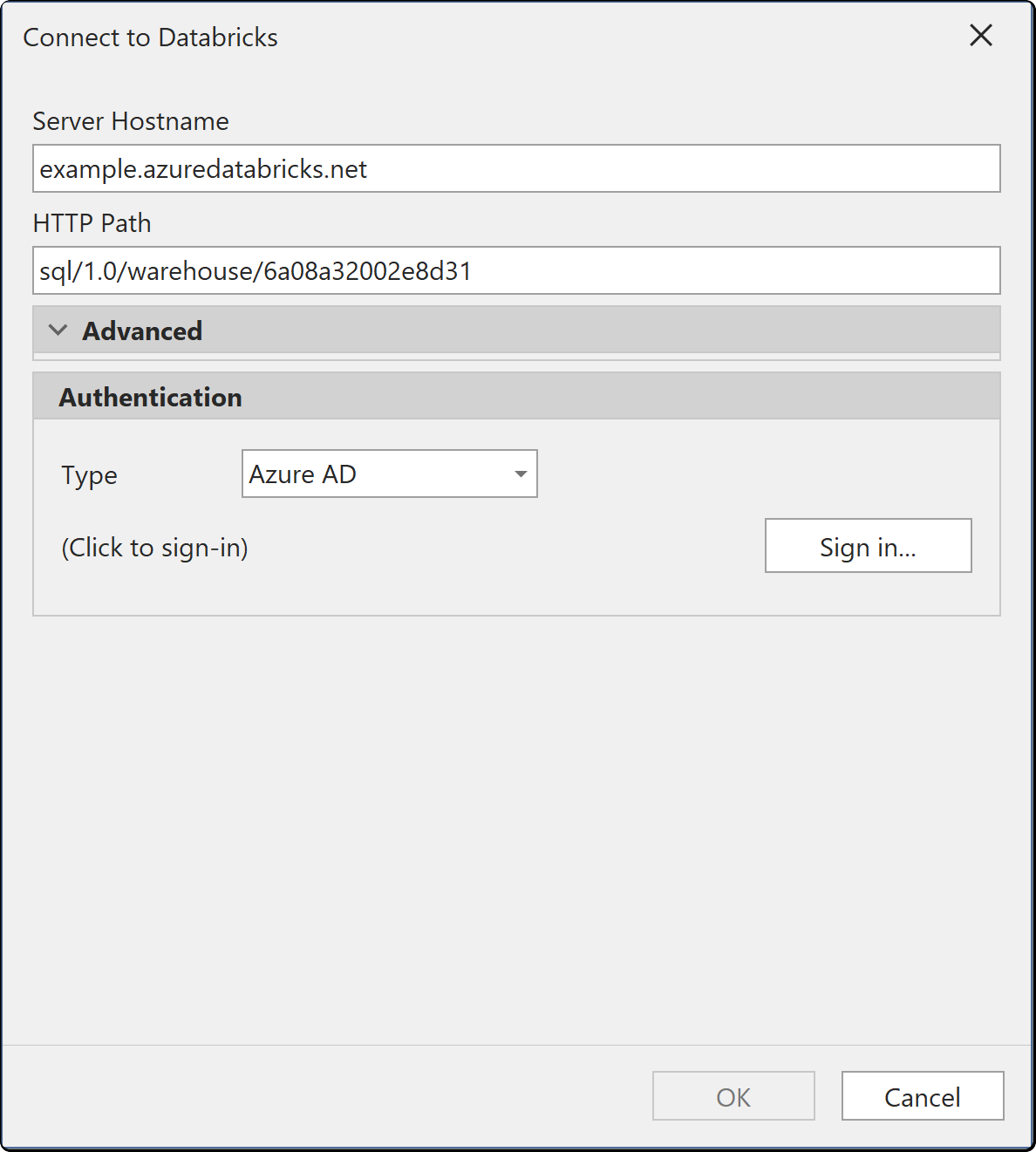
Select Model > Import tables... and choose a Databricks source to open the dialog. Connecting to Azure Databricks walks through an Azure Databricks import step by step.
Prerequisites
Install the Databricks ODBC Driver on your machine (see Prerequisites in the tutorial for the supported drivers).
Connection fields
| Field | Description |
|---|---|
| Server Hostname | The host name from the Connection details tab of the compute resource in Databricks. Required |
| HTTP Path | The HTTP path from the same tab. Required |
| Type | The authentication option. See Authentication |
| Username and Password, or Sign in... | The credentials for the selected authentication option. The fields change with the option |
| Advanced | Optional settings: Default catalog, Database, Automatic Proxy Discovery, Query tags, Implementation and Metric View BI Compatibility Mode |
Authentication
| Authentication | What you supply | Interactive sign-in |
|---|---|---|
| Access Token | A Databricks personal access token. When it expires, enter a new one | No |
| Username / Password | User name and password | No |
| Azure AD | A Microsoft Entra ID sign-in. Available only for Azure Databricks | Yes |
| OAuth (OIDC) | A browser sign-in | Yes |
| OAuth (M2M) | A service principal client ID and client secret | No |
For unattended connections, use OAuth (M2M), which authenticates as a service principal.
Tabular Editor saves the connection settings and credentials in your user options file (see Where credentials are stored).