Connect to SQL Server
The SQL Server connector connects to SQL Server, Azure SQL Database, Azure SQL Managed Instance and Azure Synapse Analytics. Start from Model > Import tables... and choose a SQL Server source.
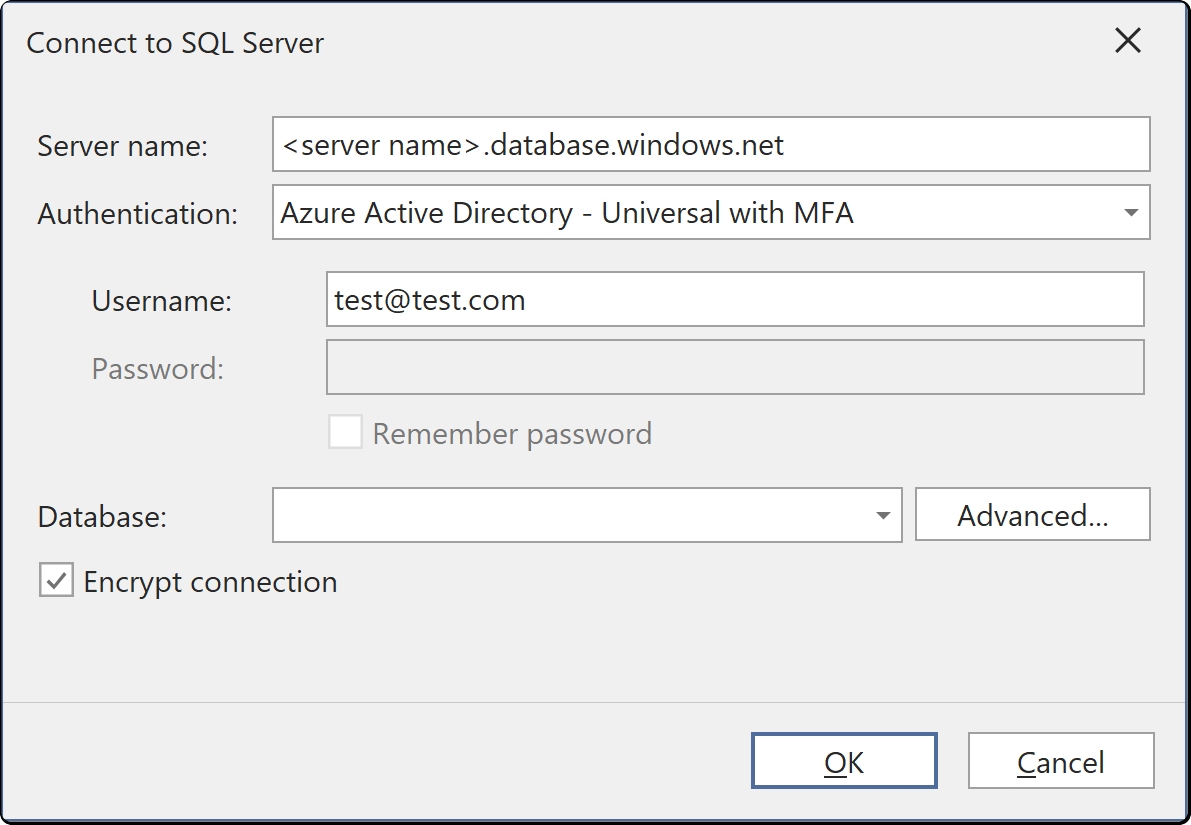
Connection fields
| Field | Description |
|---|---|
| Server name | The server or instance to connect to |
| Authentication | The authentication option. See Authentication |
| User name and Password | The credentials for the selected authentication option |
| Remember password | Saves the password for the next connection. If you clear it, you're prompted for the password the next time you import, preview or update the table schema |
| Database | The database to import from. Select < Browse server... > to list the databases on the server |
| Encrypt connection | Requires TLS for the connection. See Encryption |
| Advanced... | Opens the full connection string properties |
Authentication
| Authentication | What you supply | Interactive sign-in |
|---|---|---|
| SQL Server Authentication | User name and password of a SQL login defined on the server | No |
| Windows Authentication | Nothing. Uses the Windows account Tabular Editor runs as | No |
| Azure Active Directory - Universal with MFA | A browser sign-in | Yes |
| Azure Active Directory - Password | User name and password of a directory account. Fails if the account requires multifactor authentication | No |
| Azure Active Directory - Integrated | Nothing. Uses the directory account you're signed in to Windows with, on a directory-joined machine | No |
| Azure Active Directory - Service Principal | Application (client) ID and secret | No |
For unattended use, select Azure Active Directory - Service Principal. When you select Windows Authentication or Azure Active Directory - Integrated, User name, Password and Remember password are disabled and User name shows your Windows account as DOMAIN\user.
Tabular Editor saves the connection settings and credentials in your user options file (see Where credentials are stored).
Encryption
Encrypt connection is selected by default, and Azure SQL requires it.
If your machine doesn't trust the server's certificate, a SQL Server certificate not trusted prompt appears. Select OK to trust the certificate and connect. The prompt doesn't appear if the server has a certificate your machine trusts or if you clear Encrypt connection.