(Tutorial) Creating macros
Macros are C# scripts that have been saved in Tabular Editor to be easily reused across semantic models. Saving a script as a Macro will allow that macro to be used when right clicking on the objects in the TOM Explorer making it simple to apply the script to your model.
Creating a Macro
The first step in creating a Macro is to create and test a C# script.
Tip
One easy way to get started with C# scripting is to use the built in record function that lets you record the actions you take in the TOM Explorer. This way you can see how to interact with the different model objects and create reusable scripts. Another way is to reuse existing scripts such as those in our script library. In this tutorial we use the script Format Numeric Measures to showcase the Macro functionality.
Once the script works according requirements the script can be saved using the toolbar button "Save as Macro" which will open the "Save Macro" window.
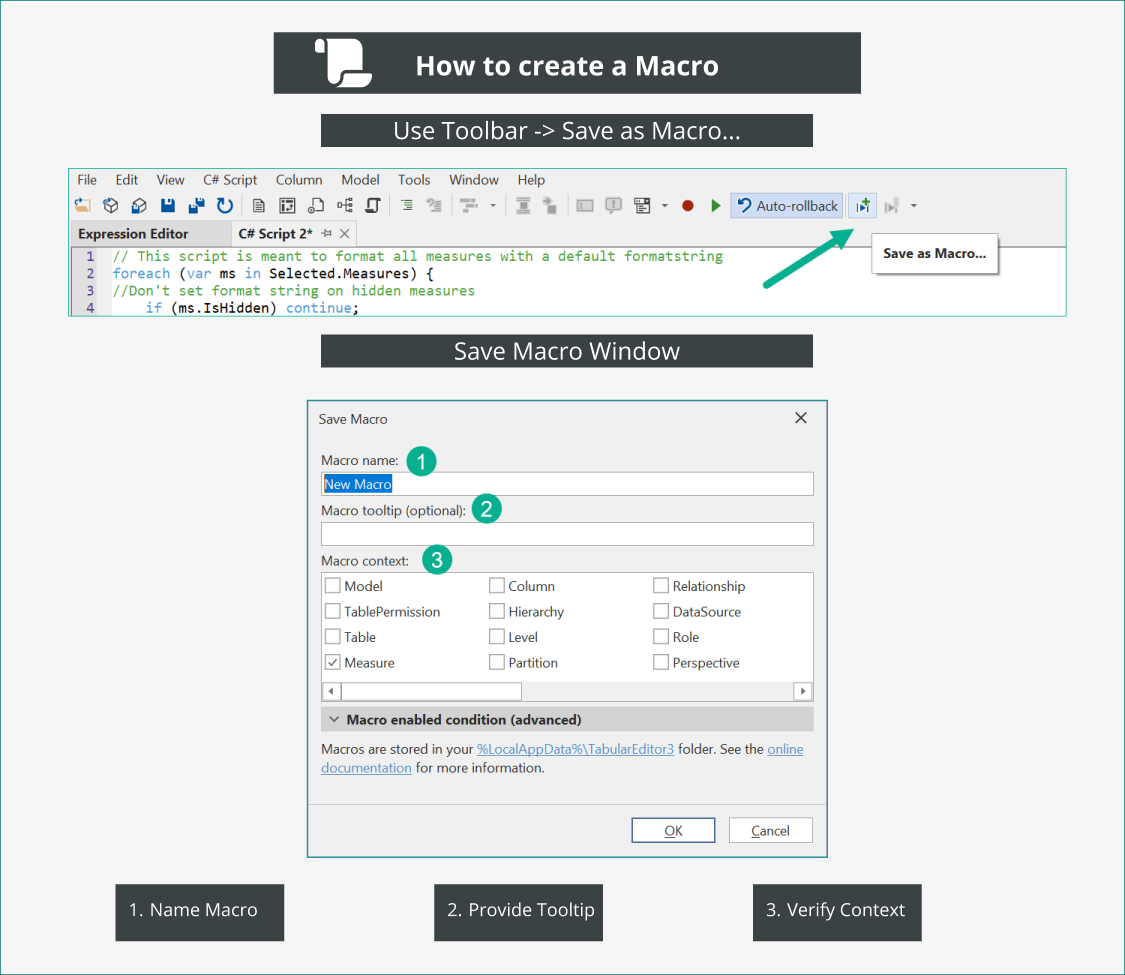
The "Save Macro" window allows three options:
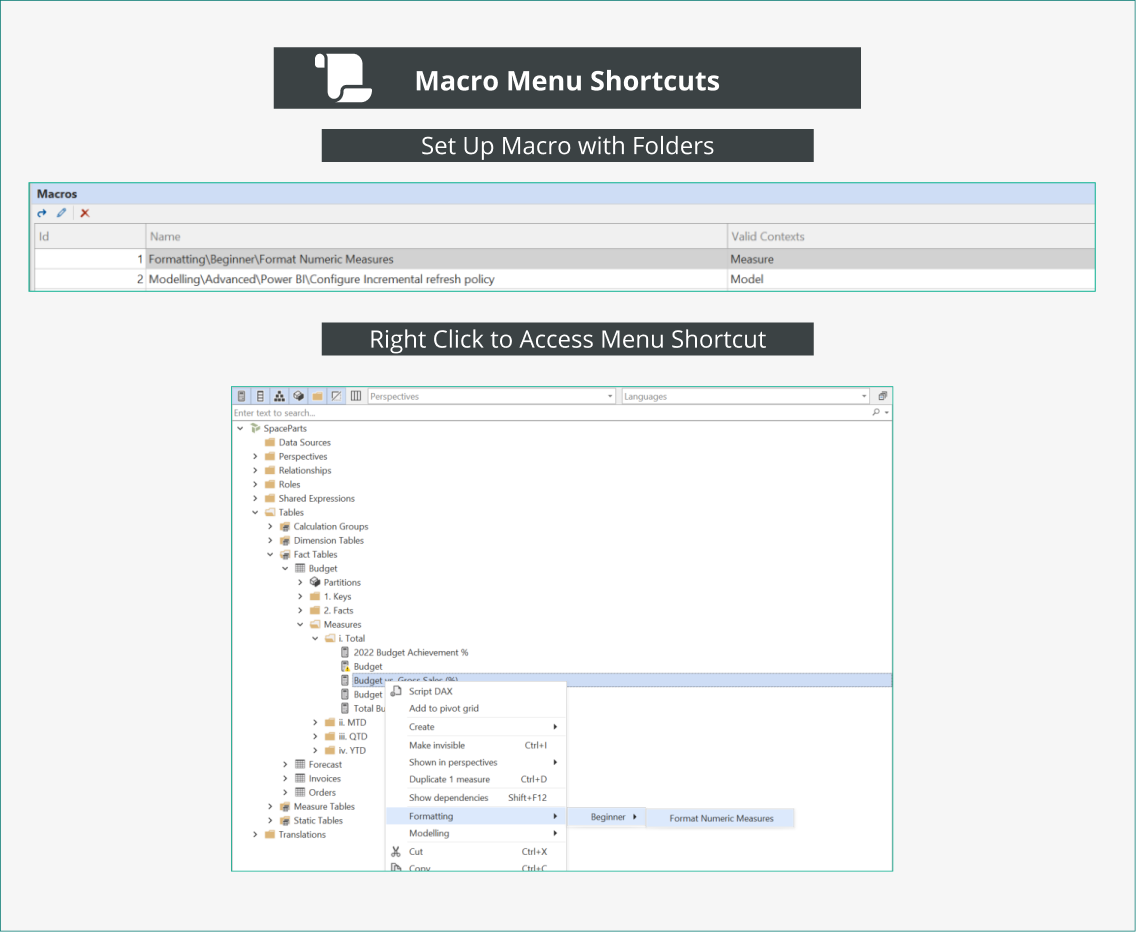
- Macro Name: Give the Macro a name and use backslash "" to create folder path for the macro (See below)
- Provide a tooltip for the Macro to remember what it does in detail
- Select a context where the Macro should be available.
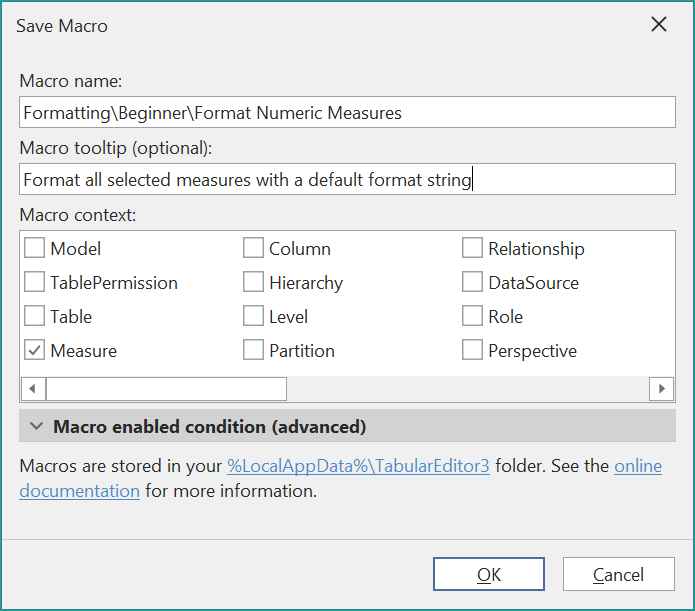
In the above example the Macro will be saved in a folder called Formatting\Beginner and the script is called "Format Numeric Measures". It will be saved in the context of measures.
Macro Context
Macros are saved in a "valid context" that determines which objects in the model the script can be applied to.
This Macro can then be used when Right Clicking on a measure in the TOM Explorer. The context given while saving the Macro determines which objects will show the Macro when right clicking on that object.
Tabular Editor will suggest a context based on the script that is being saved.
Edit a Macro
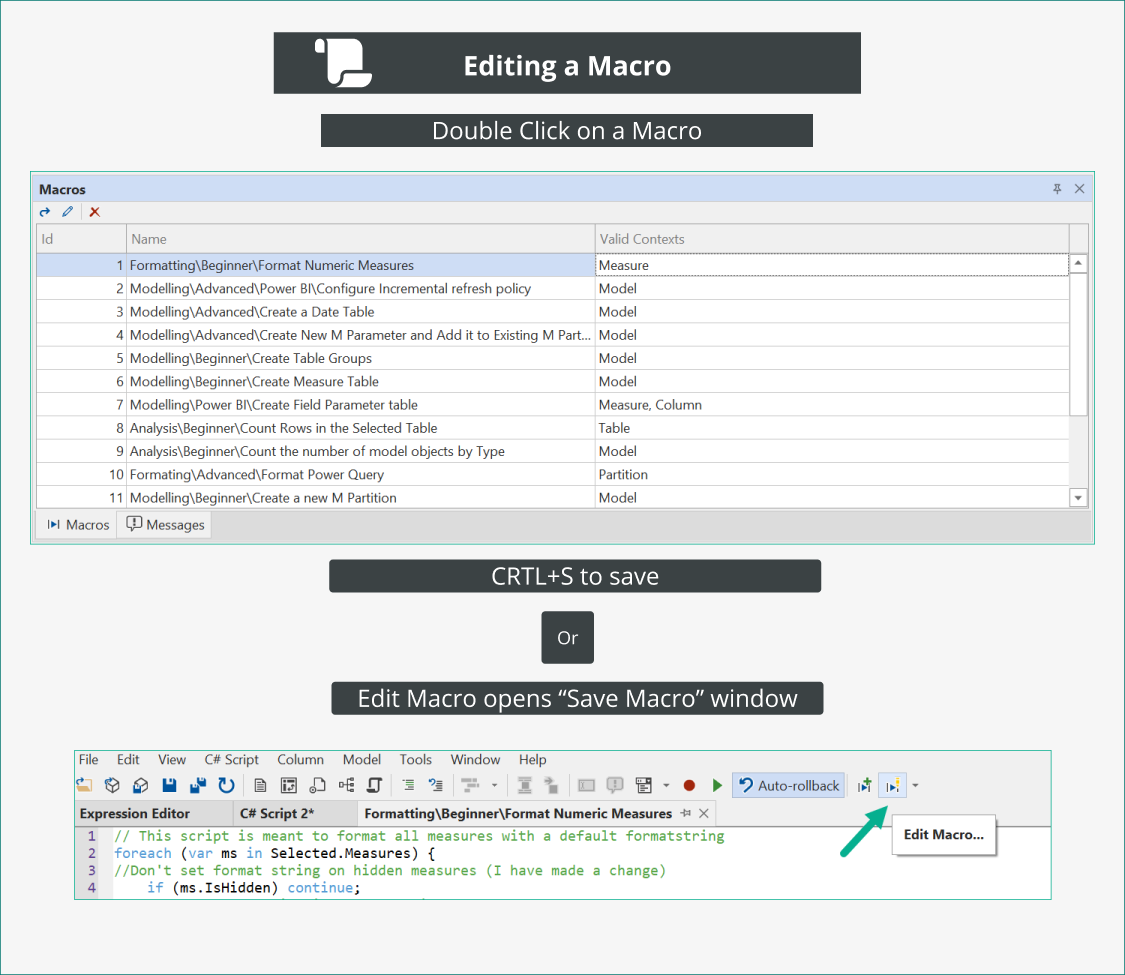
A macro can be opened by double clicking it in the Macro pane and after editing the C# script saved using Ctrl + S or the Edit Macro button.
Administrator policies
Macros can be governed centrally, through the registry policies an IT department deploys. DisableMacros stops them being saved or run at all, and macros stored in %LocalAppData% are not loaded when Tabular Editor starts.
In Tabular Editor 3, BlockUnsafeScripts allows macros only where they stay within the semantic model. A macro that reads or writes a file, reaches the network, starts another program or references an outside assembly is saved, but left out of every menu so it cannot be run by accident. You will find it under View > Macros with its Blocked column filled in, where it can still be opened and edited; bring it back inside the line and its menu item returns without restarting Tabular Editor. Saving such a macro tells you it is saved but will not run.
See C# Scripts for what counts as staying within the model, and Policies for the registry values themselves.
Macro JSON file
Macros are stored in the %LocalAppFolder%/TabularEditor3 as a JSON file called MacroActions.json. For more information on file types in Tabular Editor please see Supported File Types
Macro file example
An example of a MacroActions.JSON file can be found here. It contains several of the C# scripts from our script library: Download example MacroActions File