Tabular Editor CLI (Limited Public Preview)
The Tabular Editor CLI (te) is a cross-platform command-line interface for Power BI and Analysis Services semantic models. It runs on Windows, macOS, and Linux as a single self-contained executable and is based on the same foundation that powers Tabular Editor 3.
With the Tabular Editor CLI you can inspect, edit, validate, deploy, refresh, and test semantic models from a terminal - against local TMDL or BIM files, Power BI Desktop, or semantic models in Fabric and Power BI Service workspaces.
Unlike the Windows-only TabularEditor.exe command-line options (TE2) - which was designed primarily to automate C# scripts and macros from a desktop binary - te is a purpose-built, cross-platform CLI with structured output, predictable exit codes, and an interactive shell. This unlocks scenarios that our existing TE2 CLI can't cover well: terminal-driven model work on macOS and Linux, AI agents driving model changes directly, and clean drop-in for any modern CI runner.
Important
The Tabular Editor CLI is in Limited Public Preview. It is offered for evaluation with a Tabular Editor account; no license is required during preview. Commands, flags, and outputs may change before general availability. The preview build stops functioning after 2026-10-31. We recommend against using the CLI in production CI/CD pipelines during preview.
Design pillars and target audiences
Four design pillars shape every command:
- Structured output - JSON, CSV, TMDL, TMSL alongside default human-readable text.
- Non-interactive mode - a global
--non-interactiveflag that disables prompts and fails fast. - Safe by default - editing commands such as
te set,te addandte removeshow their change as a diff and write nothing until you add--save; adding--forcesaves even when the change introduces validation errors.te deployandte refreshprint the exact TMSL they would send until you add--execute, and then ask for confirmation first unless you add--force. - Clear errors - written to stderr with predictable exit codes.
Together they make the same binary work well for three very different audiences:
- Humans - scripting bulk edits, exploring a model from the terminal, composing commands in shell pipelines.
- AI agents - token-lean JSON, machine-parseable error shapes, exit codes that signal success or failure without parsing stdout.
- CI/CD pipelines - non-interactive execution, GitHub Actions and Azure DevOps annotations, VSTEST-compatible test results.
Note
When using the TE CLI with agents use the TE CLI skill for AI coding agents that wraps the TE CLI end-to-end. See AI Agent Skill for how to install the skill.
What the CLI can do
The CLI organizes its commands into 10 families. Each family maps to a concrete stage of the semantic-model lifecycle.
See Command Reference for a full command reference with syntax, options, and examples for each command. Click any example command in the table to jump straight to its reference entry.
| Family | What it does | Example commands |
|---|---|---|
| Model initialization and save | Save, convert, initialize models | te save-as, te init |
| Model Editing | Get/set properties, add/remove/move objects | te set, te add, te remove, te move |
| Inspection | List objects, search, diff, dependency analysis | te list, te find, te diff, te deps |
| Analysis & Quality | Validate, run BPA, format DAX and M, analyze storage | te validate, te bpa run, te util, te vertipaq |
| Execution | Run DAX queries, C# scripts, macros | te query, te script, te macro |
| Deployment & Refresh | Deploy to workspace, trigger refresh, apply refresh policies | te deploy, te refresh |
| Testing | Assertion tests, snapshots, A/B comparison | te test run |
| Connection & Authentication | Connect to workspaces, manage authentication and profiles | te connect, te auth, te profile |
| Configuration | CLI settings and defaults | te config |
| Shell | Interactive mode, session state, shell completions | te interactive, te session, te completion |
Tip
The docs use canonical long-form verbs (list, remove, move), but the classic short forms still work as aliases (ls, rm, mv, rename). This applies to top-level commands and to remove / list subcommands under groups like te bpa rules, te macro, te config, te profile, te session, and te test. See Command Reference for the full mapping.
Getting started
- Sign up or sign in at tabulareditor.com with a Tabular Editor account.
- Download and install - see Installation and Setup for Windows, macOS, and Linux instructions.
- Authenticate - run
te auth loginto connect to Power BI or Fabric. See Authentication and Connections. - Run your first command -
te --helplists every command;te <command> --helpshows detailed options. Tip: runningteon its own in a terminal drops you into the interactive REPL - a friendly way to explore a model. See Interactive Mode.
A first look at a live model takes two commands:
te auth login
te list -s MyWorkspace -d MyModel
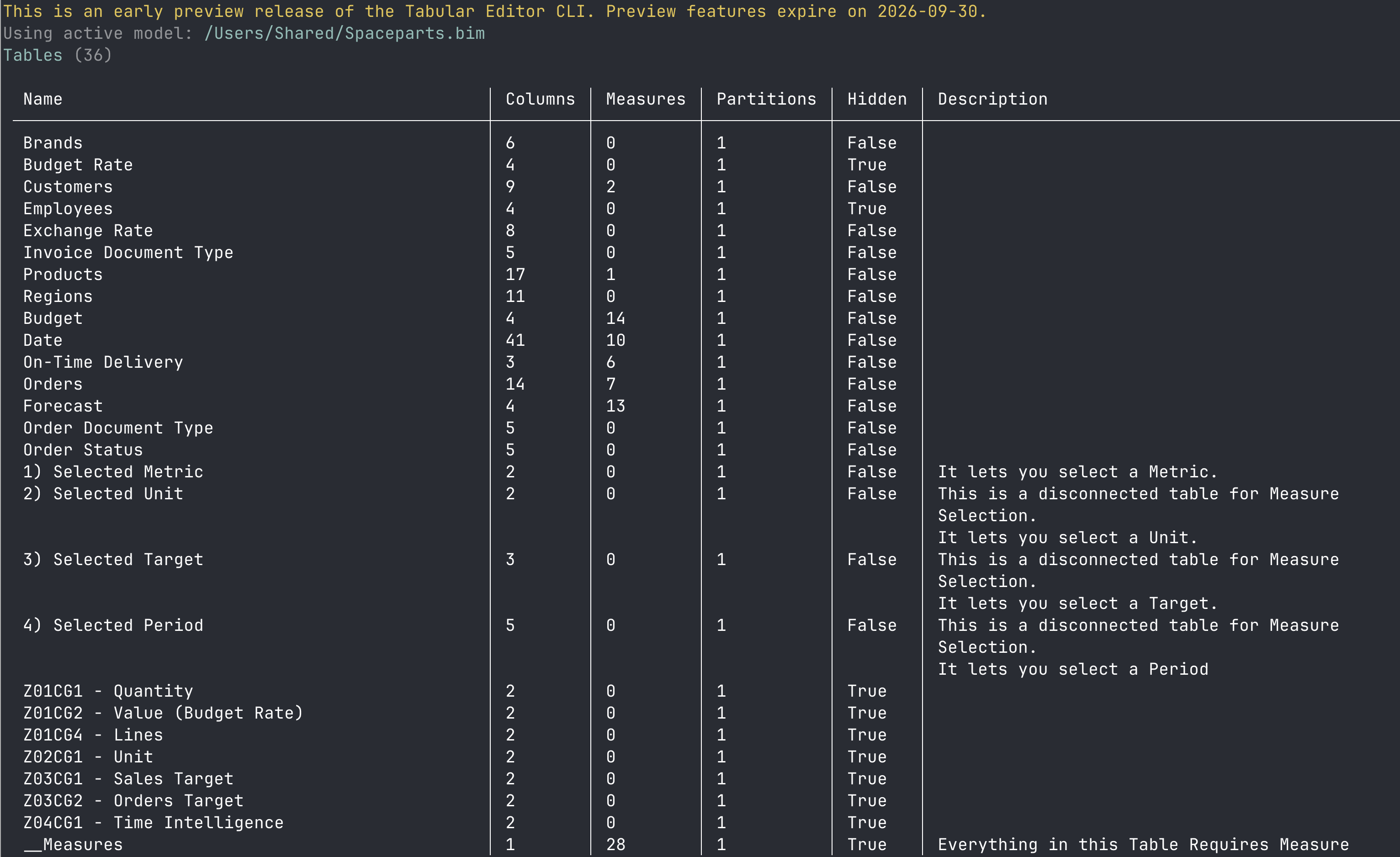
Preview notice
Every command prints a yellow preview banner on stderr by default:
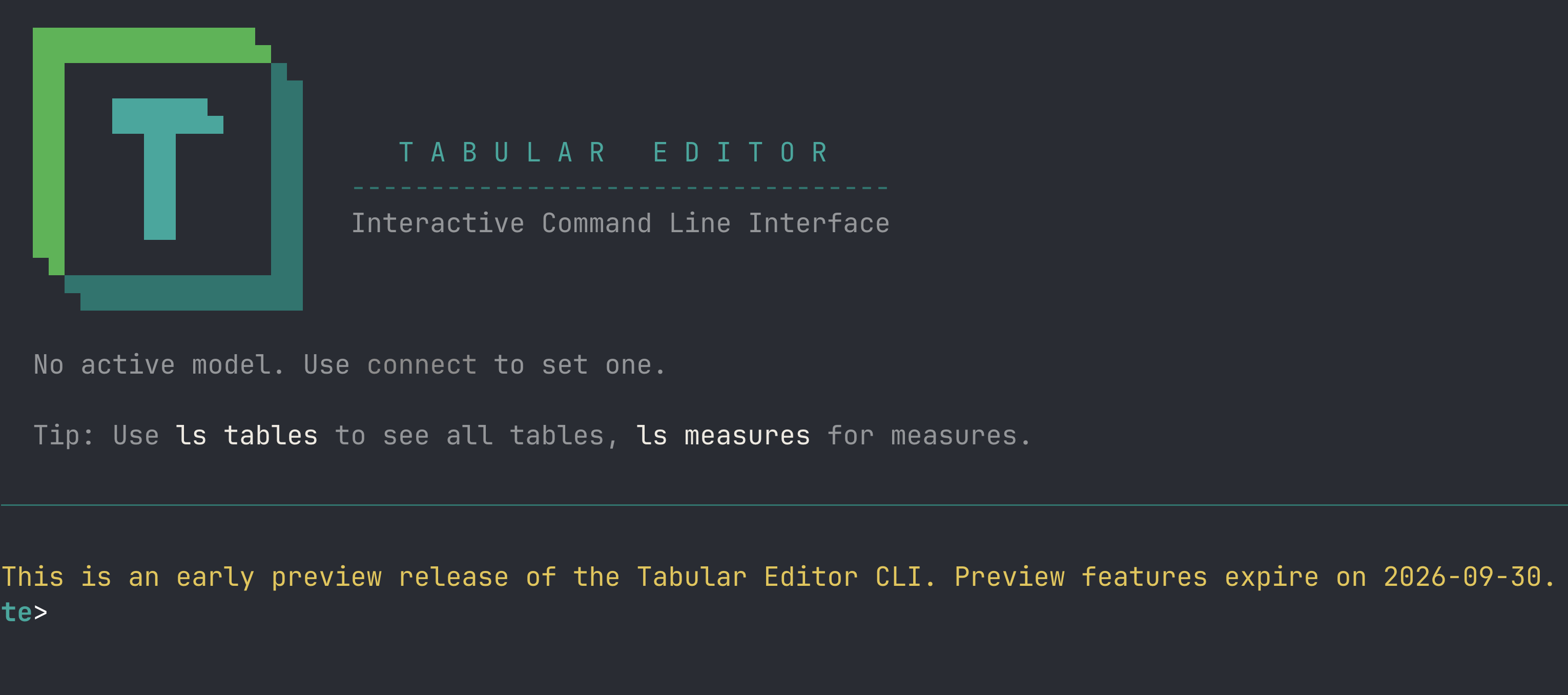
To hide the preview notice, simply run:
te config set hidePreviewNotice true
Warning
The banner reappears on every command within 14 days of the preview end date (2026-10-31), regardless of hidePreviewNotice. This ensures you have visible warning before the CLI stops functioning.
License outlook
During Limited Public Preview, the CLI does not require a license; you only need a Tabular Editor account to download it. At General Availability (GA) the CLI will require a license; pricing is still being finalized and will be announced ahead of GA.
Feedback and community
During the preview, bug reports, feature requests, and general discussion happen in the public TabularEditor/CLI repository on GitHub:
- Issues - report bugs, request features, and track known problems.
- Discussions - ask questions, share feedback, and swap usage tips with other early adopters.
The repository does not host the CLI source code; it exists to give the community a public place to reach us during the preview.
Next steps
- Installation and Setup - download, install, verify.
- Authentication and Connections - authenticate to Power BI, Fabric, and Azure Analysis Services.
- Command Reference - full command reference.
- Custom Configuration - configuration file and path overrides.
- Interactive Mode - guided REPL mode for new users.
- Automation and Scripting - structured output, scripting patterns for Python, PowerShell, and Bash.
- CI/CD Integration - GitHub Actions and Azure DevOps pipeline examples.
- Migrating from the TE2 Command Line - migrating from the Tabular Editor 2 command line.