Adding tables
Add initial tables to the diagram in any of the following ways:
- (Multi-)select tables in the TOM Explorer, then right-click and choose Add to diagram.
- (Multi-)select tables in the TOM Explorer, then drag the tables over to the diagram
- Use the Diagram > Add tables... menu option, and (multi-)select the tables you want to add through the dialog box.
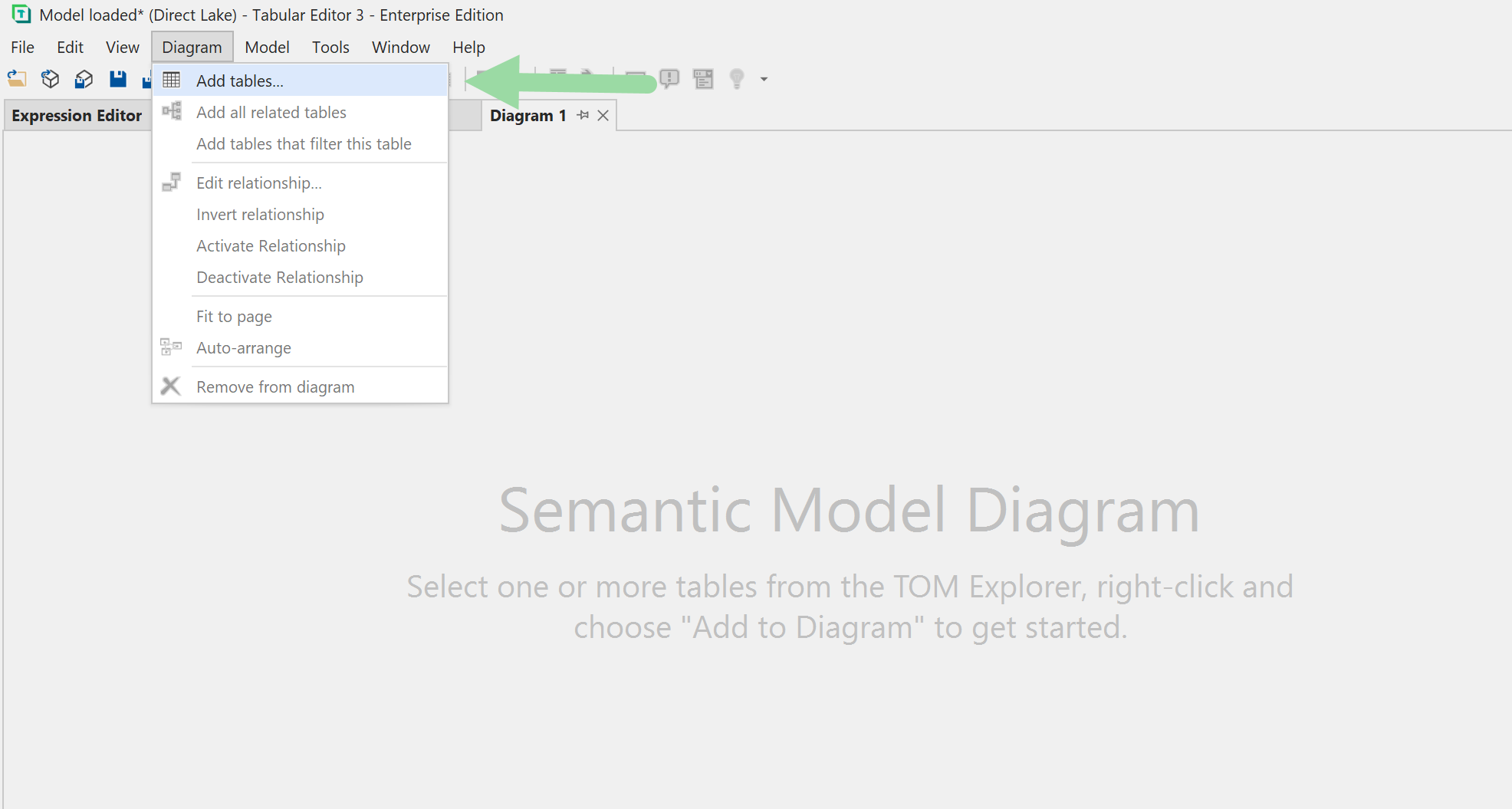
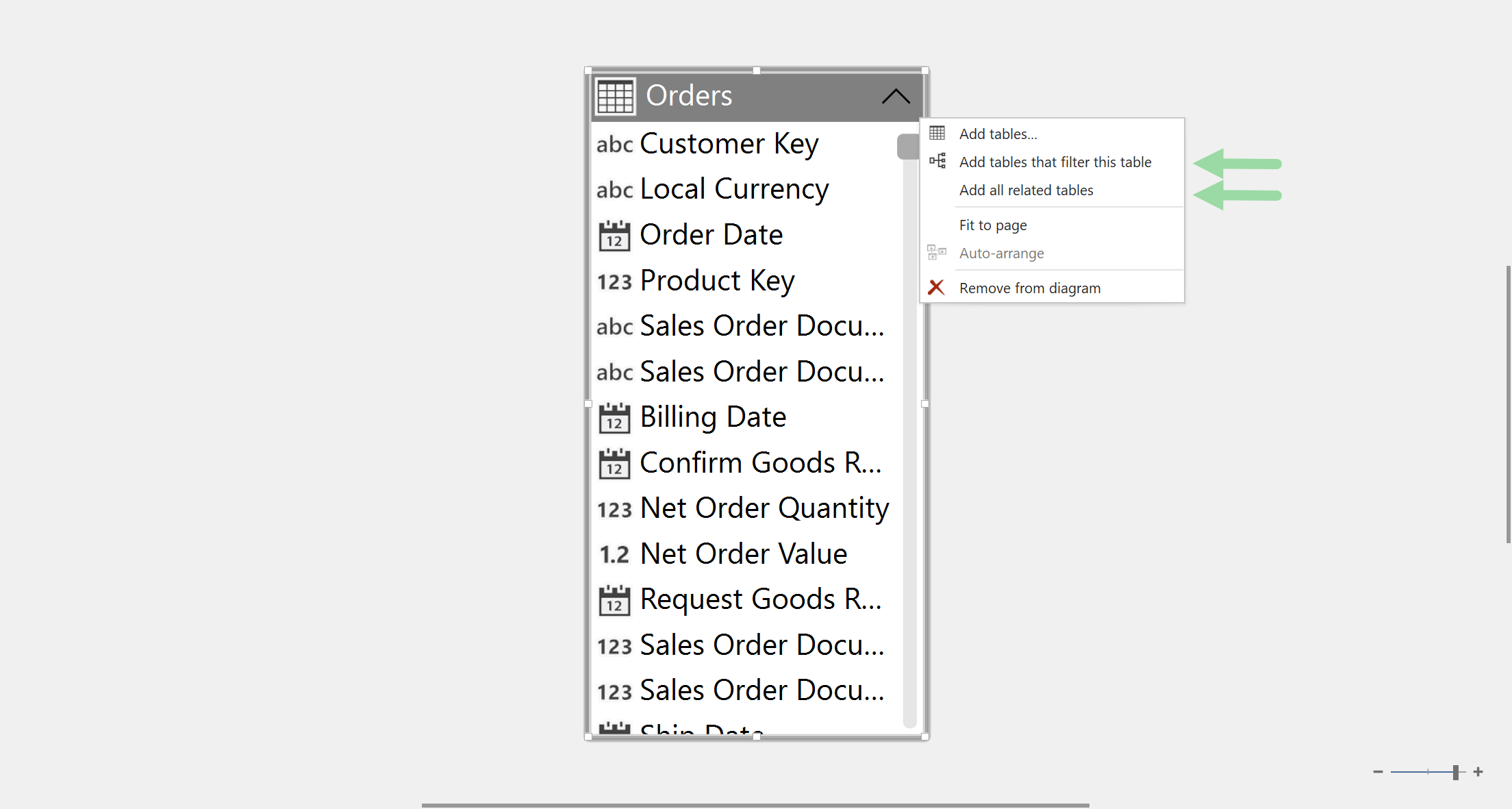
To add additional tables to the diagram, use the technique above again, or right-click on an existing table in the diagram and choose one of the following options:
- Add tables that filter this table: Adds all tables to the diagram which may, directly or indirectly through other tables, filter the currently selected table. Useful when starting from a fact table.
- Add all related tables: Adds all tables to the diagram which are directly related to the currently selected table. Useful when starting from a dimension table.
Before proceeding, rearrange and resize the tables in the diagram to suit your preferences, or use the Diagram > Auto-arrange feature to have Tabular Editor 3 lay out the tables automatically.
Modifying relationships using the diagram
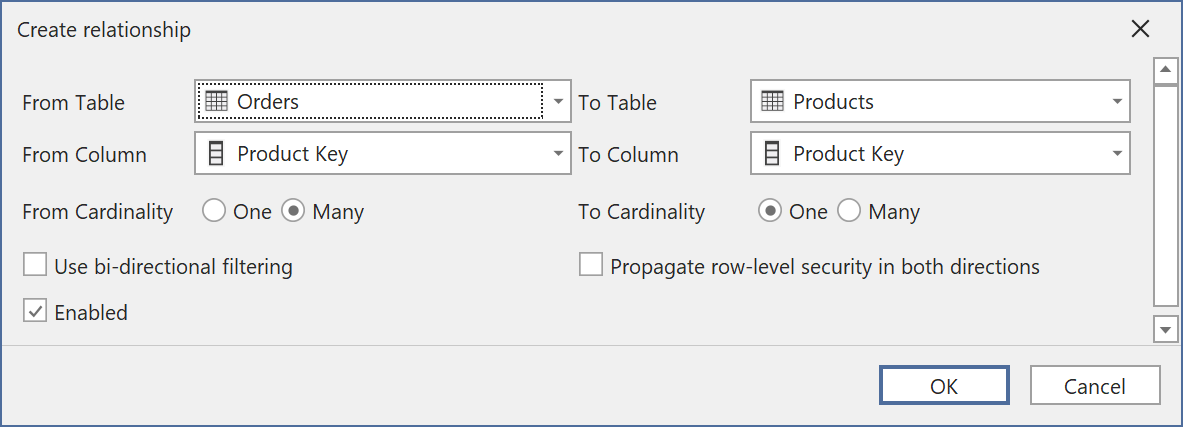
To add a new relationship between two tables, locate the column on the fact table (many-side) of the relationship, and drag that column over to the corresponding column on the dimension table (one-side). Confirm the settings for the relationship and hit OK.
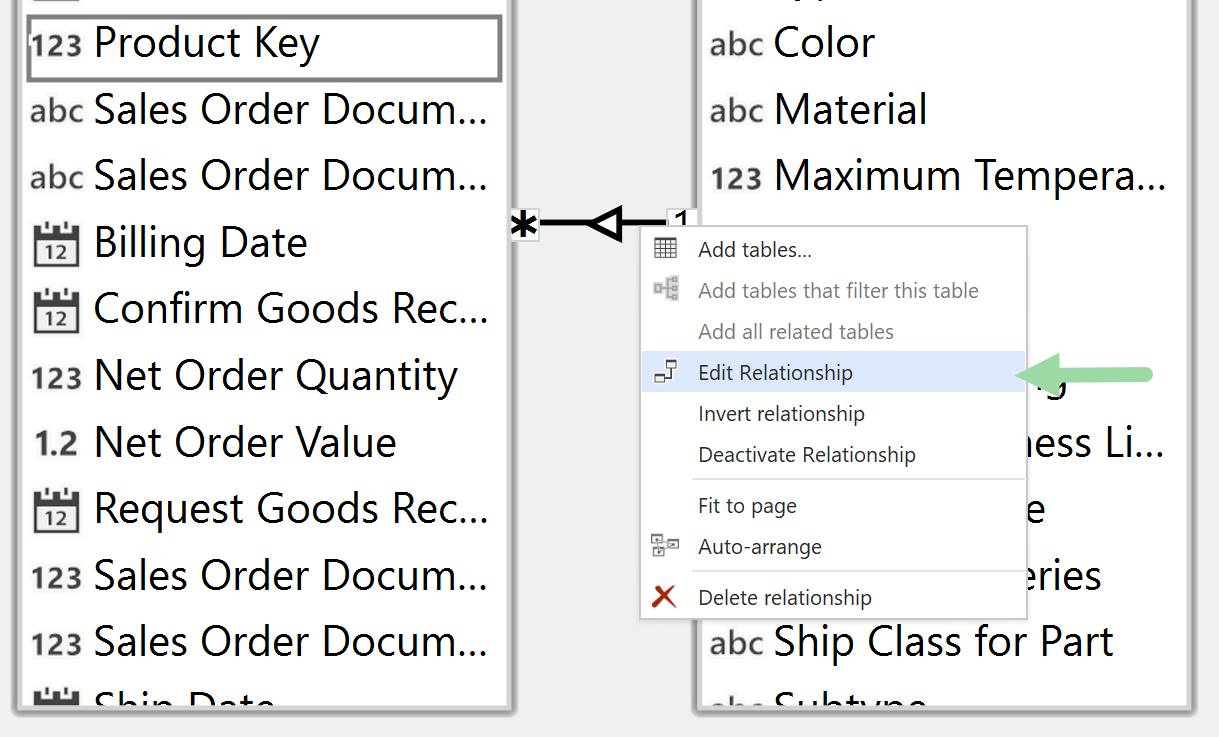
To edit an existing relationship, right-click on it and choose Edit relationship. The right-click menu also contains shortcuts for reversing or deleting a relationship, as shown on the screenshot below.
Note
You can also create relationships without using a diagram, through the TOM Explorer. Locate the column from which the relationship should start (many-side / fact-table side), right-click and choose Create > Relationship from. Specify the destination column in the Create Relationship dialog that appears on the screen.
Selection and navigation
A diagram and the TOM Explorer keep the same object selected. Clicking a table, a column or a relationship in the diagram selects it in the tree, without pulling focus away from the diagram. Going the other way, selecting a table or a column in the tree highlights it in every open diagram, scrolling a column into view inside its table shape.
This works for navigation you did not perform by hand in the tree: Go to actions and search results highlight in your diagrams too.
A selection that does not resolve to a single table or column, whether several objects or none, clears the diagram's highlight rather than leaving a stale one behind.
Note
Selecting an object in the TOM Explorer never switches the active document to a diagram. If a diagram is open in the background it updates quietly, and you keep working where you were.
Double-click a relationship to open Edit relationship.
Saving a diagram
To save a diagram, use the File > Save (Ctrl+S) option. Tabular Editor 3 prompts you to save the diagram if you close the document or the application while the diagram has unsaved changes.
Tip
The same diagram file can be loaded for different data models. Diagrams reference tables by their names. Any tables not present in the model upon diagram load are simply removed from the diagram.
Note
Every time you add or modify a relationship, you will have to run a "calculate" refresh on the data model, before the relationships can be used when querying the model.