Working with Perspectives and Translations
You can add/edit existing perspectives and translations (cultures), by clicking the Model node in the Explorer Tree, and locating the relevant properties at the bottom of the property grid. Alternatively, when your Explorer Tree is showing all object types, you can view and edit perspectives, cultures and roles directly in the tree.
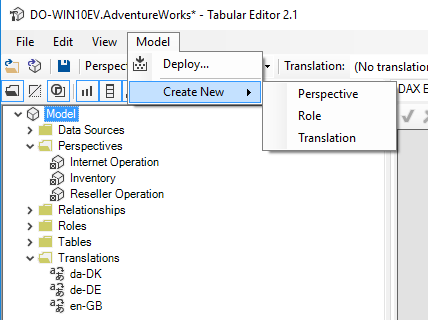
You can duplicate an existing perspective, role or translation by opening the right-click menu and choose "Duplicate". This will create an exact copy of the object, which you can then modify to your needs.
To view perspectives and/or translations "in action", use the two dropdown lists in the toolbar near the top of the screen. Choosing a perspective will hide all objects that are not included in that perspective, while choosing a translation will show all objects in the tree using the translated names and display folders. When hitting F2 to change the names of objects/display folders or when dragging objects around in the tree, the changes will only apply to the selected translation.
Perspectives/Translations within object context
When one or more objects are selected in the tree, you will find 4 special property collections within the Property Grid:
- Captions, Descriptions and Display Folders shows a list of all cultures in the model, with the translated names, descriptions and display folders respectively of the selected objects for each culture.
- Perspectives shows a list of all perspectives in the model, with an indication of whether or nor the selected objects belong to each perspective.
You can use these collections in the Property Grid to change the translations and perspective inclusions for one or more objects at a time.