Install and Activate Tabular Editor 3
This page covers common installation and activation problems for Tabular Editor 3 and how to resolve them. For the standard activation flow, see Installation and Activation. For advanced deployment scenarios (silent install, license pre-provisioning, post-install configuration), see Advanced installation and activation.
Verify system requirements
Confirm the machine meets the requirements before further troubleshooting:
- Operating system: Windows 10, Windows 11, Windows Server 2016, Windows Server 2019 or newer
- Architecture: x64, ARM64 (native from 3.23.0)
- .NET Runtime: .NET Desktop Runtime 8.0
Use the matching MSI for your architecture from the downloads page. An installer or architecture mismatch is a frequent cause of failed installs and missing-dependency errors at first launch.
Inspect the activated license
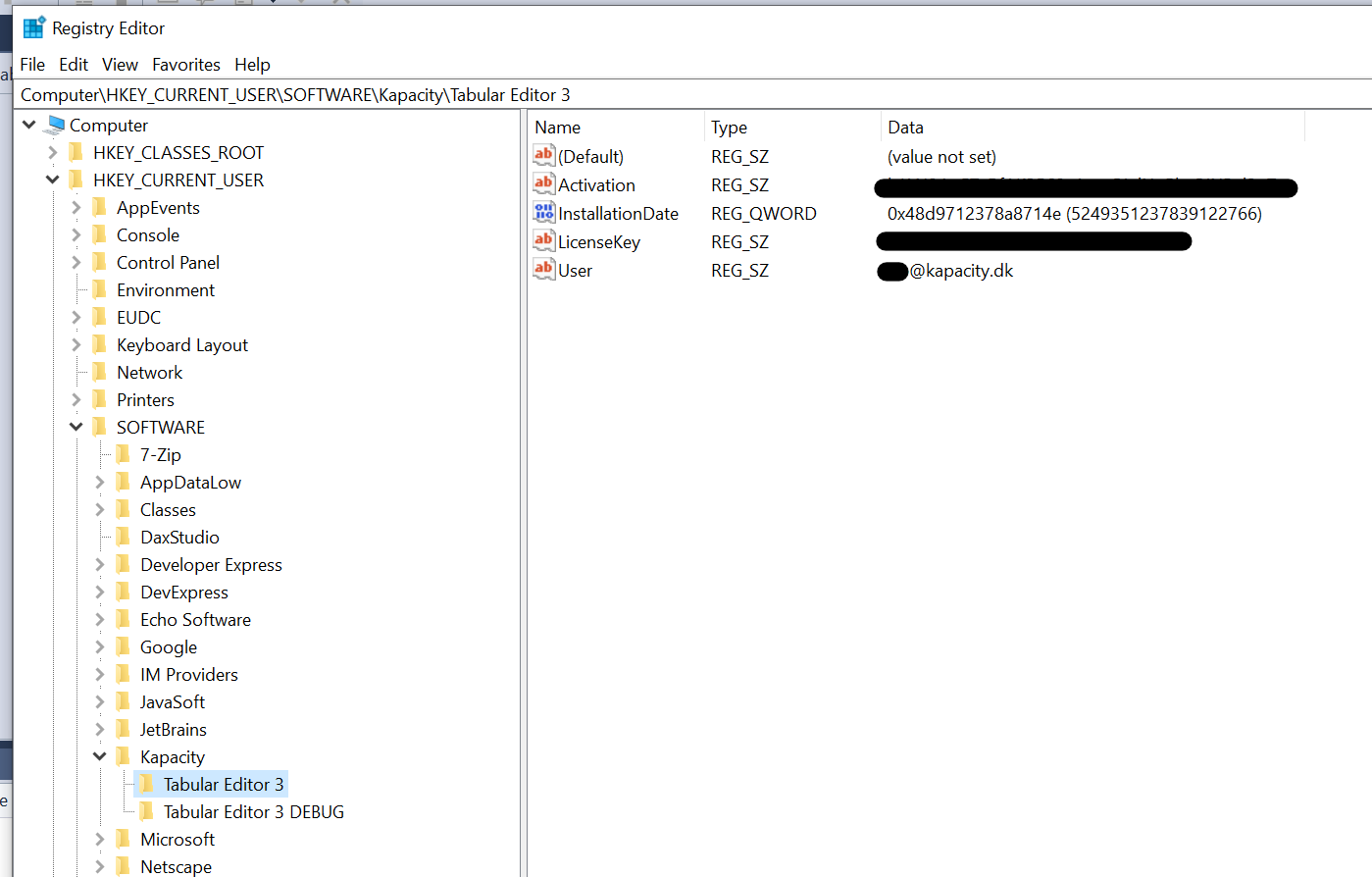
Tabular Editor 3 stores activation details in the Windows Registry under HKEY_CURRENT_USER\SOFTWARE\Kapacity\Tabular Editor 3.
To view the current license key for the active Windows user, run the following in the Windows Command Prompt (Start > Run > cmd.exe):
REG QUERY "HKCU\Software\Kapacity\Tabular Editor 3" /v LicenseKey
You can also inspect and edit the LicenseKey and User values directly using regedit.exe.
Activation dialog keeps reappearing
Tabular Editor 3 contacts https://api.tabulareditor.com at startup and periodically to validate the license. If this endpoint is unreachable due to a firewall or proxy, the application requires re-activation every 30 days. See Policies for the full list of endpoints used.
If activation prompts persist:
- Confirm
api.tabulareditor.comis reachable from the affected machine. - Configure proxy settings under Tools > Preferences > Proxy Settings. See Proxy settings for proxy-specific troubleshooting, including the AnalysisServices.AppSettings.json override that enables external MSAL proxy support.
- If the network blocks outbound traffic to the activation endpoint, use Manual activation below.
Manual activation (no internet)
If the machine running Tabular Editor cannot reach the activation endpoint, the activation prompt offers a manual flow.
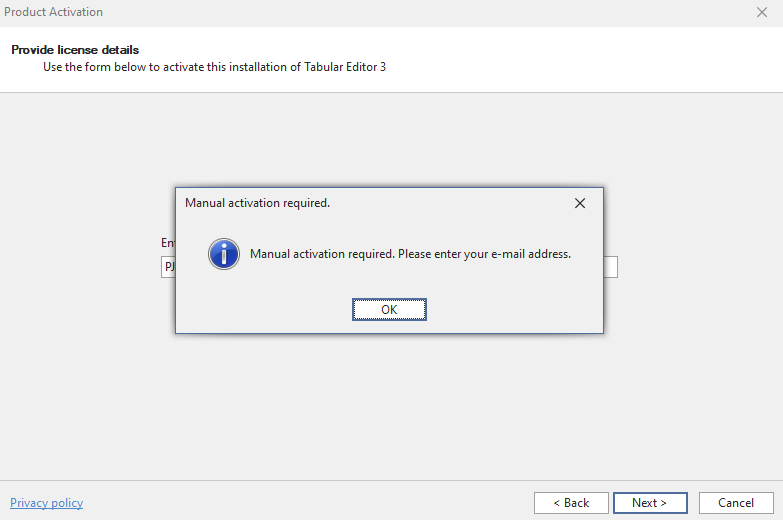
Enter your e-mail. A dialog appears with a link to an activation key.
Copy the URL and open it on a different machine that has internet access. The URL returns a JSON object.

Copy the full JSON object and paste it into the dialog on the offline machine.

Tabular Editor 3 then verifies the license.
Cannot change a license key from the UI
The Change license key button under Help > About Tabular Editor is only enabled when no model is loaded. If the button is grayed out, close the open model under File > Close model and try again.
If the UI option still fails, reset the license through the Registry Editor:
- Close all instances of Tabular Editor 3.
- Open the Registry Editor (Start > Run > regedit.msc).
- Locate
HKEY_CURRENT_USER\SOFTWARE\Kapacity\Tabular Editor 3. - Delete all values within this key.
- Restart Tabular Editor 3.
Alternatively, run the following in a Windows Command Prompt:
REG DELETE "HKCU\Software\Kapacity\Tabular Editor 3" /va
The next launch prompts for a license key as if the application were freshly installed.
Important
Once a license key is removed, the product is not usable by the current Windows user on that machine until a new license key is entered.
License is on the wrong Windows user
Tabular Editor 3 activations are stored per user under HKEY_CURRENT_USER. If multiple users share a machine, each user activates the product on their own Windows profile. A license activated under one Windows account is not visible to another Windows account on the same machine.
To check which Windows account holds the license, log in as that user and run the registry query in Inspect the activated license.
Windows account vs Power BI / Entra account
A common source of confusion: the Windows account that runs Tabular Editor 3 is independent from the Microsoft Entra account used to authenticate against a Power BI / Fabric workspace.
- License activation is stored under
HKEY_CURRENT_USERof the Windows user that activated the product. It is not tied to any cloud identity. - Workspace authentication happens at connection time in the Load Semantic Model from Database dialog. Sign in there with the Microsoft Entra account that has permission on the workspace.
You do not need to launch Tabular Editor 3 with Run as under a different Windows account just because you connect to Power BI with a separate Entra account (for example a non-mail-enabled admin account). Launch under your normal Windows account, activate the license under that account, and provide the admin Entra credentials in the connection dialog.
For details on how to choose the right authentication mode (for example Microsoft Entra MFA when your Windows login does not match your Power BI account), see XMLA / Analysis Services connectivity.
Enterprise seat is in use by another user
Enterprise licenses are seat-based. To activate Tabular Editor 3 on a new user when all seats are occupied, the existing user must first be deregistered from a seat through the Tabular Editor Self-Service portal. The subscription owner or license administrator performs this action.
Note
Seat reassignment is only possible on the Enterprise Edition.
Activation behind a proxy
Tabular Editor 3 uses outgoing web requests for product activation, update checks, DAX formatting, and downloading external Best Practice rules. If you are behind a proxy:
- Configure Tools > Preferences > Proxy Settings. Switch the Proxy Type between
SystemandNone, restart Tabular Editor 3, and retry activation. - If activation still fails, see Proxy settings for advanced proxy diagnostics.
- If outbound access to
api.tabulareditor.comis blocked, use Manual activation.
Tip
Proxy settings can interfere with authentication dialogs and other external prompts. After changing the proxy type, always close and reopen Tabular Editor 3 before retesting.
Confirm you are on the latest version
Activation-related bugs are sometimes resolved in newer Tabular Editor 3 releases. Confirm you are on the latest version before submitting a support request. Check for updates under Tools > Preferences > Updates and Feedback, or download the latest installer from the downloads page.