Change compatibility mode
A model's Compatibility Mode controls which platform the model targets. This property determines:
- Which Tabular Object Model (TOM) objects and properties are available
- Which edition restrictions Tabular Editor applies
Compatibility Mode is separate from the Compatibility Level, which gates features behind version numbers.
Compatibility mode values
The Database.CompatibilityMode property accepts the following values, defined by the Microsoft.AnalysisServices.CompatibilityMode enum:
| Value | Meaning |
|---|---|
Unknown |
No specific mode. Default when the mode has not been explicitly set. The AS client library automatically detects the actual mode based on which TOM features are used (for example, if any Power BI-specific features are present). |
AnalysisServices |
Model targets SQL Server Analysis Services or Azure Analysis Services. |
PowerBI |
Model targets Power BI (Desktop, Premium Per User, Premium Capacity, Fabric). Certain TOM properties are only available in this mode. See the Remarks section of each property in the Microsoft.AnalysisServices.Tabular namespace reference for details. |
Excel |
Model originates from an Excel Power Pivot data model. Tabular Editor does not support Power Pivot models. |
Azure Analysis Services and SQL Server Analysis Services only support AnalysisServices mode. Power BI and Fabric support both AnalysisServices and PowerBI modes.
Important
Tabular Editor uses Compatibility Mode to determine edition restrictions. A model set to AnalysisServices mode triggers Enterprise-only restrictions for features like perspectives and multiple partitions, even if you deploy to Power BI.
When to change compatibility mode
Change the compatibility mode to PowerBI when all of the following are true:
- The model is deployed to Power BI (Premium Per User, Premium Capacity, or Fabric)
- The model will not be deployed to SSAS or Azure Analysis Services
- The
.bimfile was originally created in Visual Studio, SSDT, or another tool that defaults toAnalysisServicesmode - You receive an edition error about Enterprise-tier features (such as perspectives) that should be available in your edition for Power BI models
Change the compatibility mode
- Open your model in Tabular Editor.
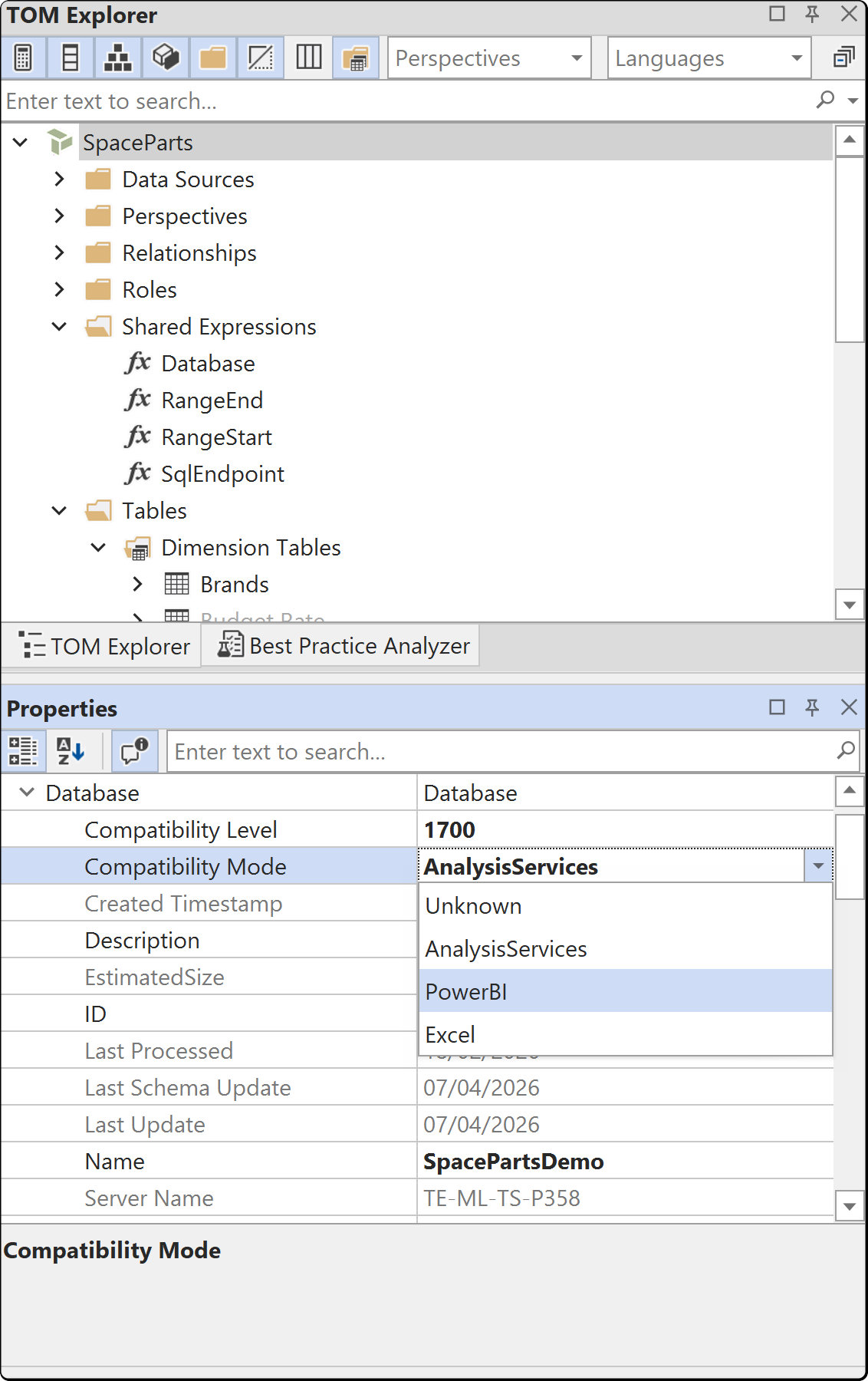
- In the TOM Explorer, select the top-level Model node.
- In the Properties panel, expand Database.
- Locate
CompatibilityMode. - Change the value from
AnalysisServicestoPowerBI. - Save the model (Ctrl+S).
Note
Changing the compatibility mode affects which TOM properties are available and how the model is validated. Verify that your deployment target matches the selected mode before saving.