Update compatibility level
A model's Compatibility Level controls which Tabular Object Model (TOM) features you can use. When Microsoft introduces new capabilities, like custom calendars or DAX user-defined functions, they're often gated behind a newer compatibility level. You'll need to upgrade before these features appear in Tabular Editor.
Warning
Compatibility upgrades are one-way. You can upgrade but can't reliably downgrade. Treat this like a schema upgrade and validate your deployment targets first.
Compatibility level vs. compatibility mode
Compatibility Level and Compatibility Mode are separate properties that serve different purposes:
| Property | Controls | Values |
|---|---|---|
Database.CompatibilityLevel |
Which TOM features are available (e.g., custom calendars, DAX UDFs) | 1200, 1400, 1500, 1600, 1700, 1701, 1702, 1705, 1706 |
Database.CompatibilityMode |
Which platform the model targets, which TOM objects and properties are available, and which edition restrictions apply | Unknown, AnalysisServices, PowerBI, Excel |
If you need to change the platform target rather than unlock new TOM features, see Change compatibility mode.
When to upgrade
Upgrade when:
- A feature exists in Power BI Desktop but the related TOM property is missing in Tabular Editor
- You need newly introduced capabilities like custom calendars (1701+), DAX user-defined functions (1702+), user-context calculated columns (1705+) or String Indexing Behavior (1706+)
- You're standardizing development across environments and want consistent minimum feature sets
Before you start
Back up your model
Because upgrades are irreversible:
- Back up the model metadata (and ideally the full project)
- Use source control with a clean commit before changing anything
Confirm target support
Compatibility level support differs by platform (SSAS, Azure Analysis Services, Fabric/Power BI Premium). If your deployment target doesn't support the selected level, you'll be blocked from deploying. See Compatibility level for tabular models in Analysis Services
Update the compatibility level
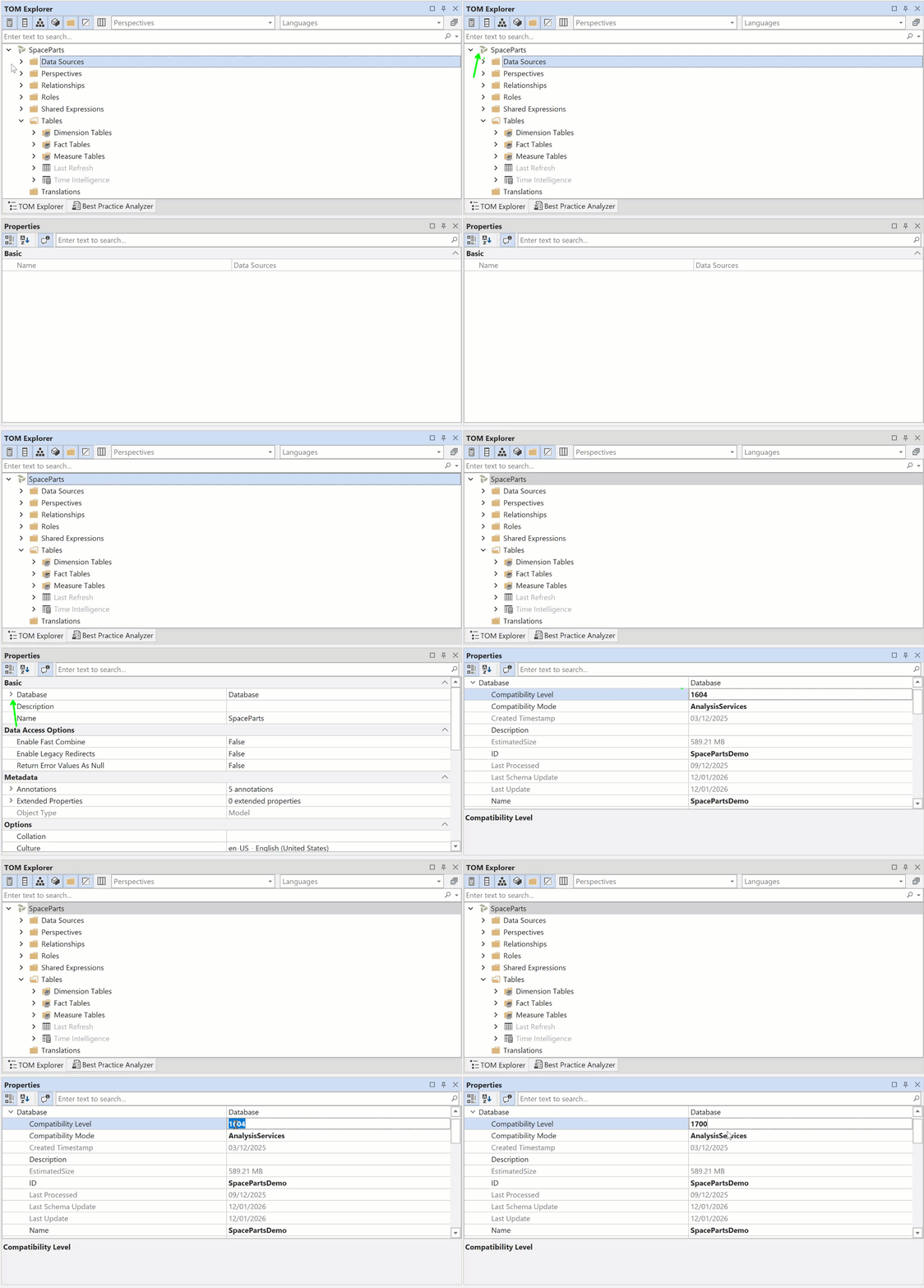
Open your model
Open your model in Tabular Editor using one of these approaches:
- Open a file-based model definition (
.bimfile) - Connect to a running model (SSAS/AAS/Power BI semantic model via XMLA endpoint)
Select the model root
In the TOM Explorer, select the top-level Model (root node).
Locate Compatibility Level
In the Properties panel:
- Expand Database
- Find Compatibility Level
Set the new level
Set the compatibility level to the minimum required for your feature (or the highest supported by your platform).
Examples:
- Calculation groups: 1500+
- Custom calendars: 1701+
- DAX UDFs: 1702+
- User-context calculated columns (the column's Expression Context property): 1705+
- String Indexing Behavior on a column: 1706+
Note
Minimum required levels for features can change as the platform evolves. Always verify prerequisites in current documentation. Some levels/features are Power BI-only and may not be available on SSAS/AAS.
Save
Save the model to apply the change:
- If connected to a remote model, saving applies the metadata change back to the server
- If editing a file-based model, saving updates the metadata on disk
After saving, Tabular Editor surfaces the newly enabled objects and properties.
Choose the right level
For SSAS/AAS deployments
Choose the latest compatibility level supported by your server version
For Power BI Desktop
Query your Power BI Desktop engine to see which compatibility levels it supports. Use DAX Studio or DAX Query View:
SELECT * FROM $SYSTEM.DISCOVER_PROPERTIES
WHERE [PropertyName] = 'ProviderVersion'
   OR [PropertyName] = 'DBMSVersion'
   OR [PropertyName] = 'SupportedCompatibilityLevels'
Troubleshooting
Can't deploy to SSAS/AAS after upgrade
You may have selected a compatibility level not supported by the target server. Validate server support before upgrading.
Reference: Compatibility level for tabular models in Analysis Services
Can I downgrade?
No. Downgrades aren't supported and aren't a safe or reliable remediation strategy.
Verification
After updating and saving:
- Confirm Database → Compatibility Level reflects the new value in Tabular Editor
- Verify the expected feature surfaces (e.g., the Functions node becomes available at 1702+)
- If targeting SSAS/AAS, validate deployment against the server's supported compatibility levels