Direct Lake Guidance
With the release of Tabular Editor 3.22.0, we have added support for Direct Lake on OneLake in addition to Direct Lake on SQL. This article provides a short overview of the differences between these two modes, and how they compare to other storage modes available in Power BI semantic models.
Storage mode overview
The following table summarizes the storage modes available in Power BI semantic models:
| Storage Mode | Description | Recommended Use Cases |
|---|---|---|
| Import | Data is imported into the semantic model and stored in the model's in-memory cache (VertiPaq). | When you need fast query performance and can afford to refresh the data periodically. |
| DirectQuery | Data is queried directly from the source at query time, without being imported into the model. Supports various sources, such as SQL, KQL and even other semantic models. | When you need real-time data access or when the data volume is too large to fit in memory. |
| Dual | A hybrid mode where the engine can choose between returning the imported data or delegating to DirectQuery, depending on the query context. | When your model contains a mix of DirectQuery and Import tables (for example when using aggregations), and you have tables that are related to both. |
| Direct Lake on OneLake | Utilizes the Delta Parquet storage format to quickly swap the data into semantic model memory when needed. | When your data is already available as tables or materialized views in a Fabric Warehouse or Lakehouse. |
| Direct Lake on SQL | Older version of Direct Lake which utilizes the SQL Analytics Endpoint of Fabric Warehouses or Lakehouses. | Not recommended for new development (use Direct Lake on OneLake instead). |
Note
It is also possible to create tables that contain a mix of partitions in Import and DirectQuery mode (also known as "hybrid tables"). This is commonly done on large fact tables that require incremental refresh while some data is queried directly from the source. See this article for more information.
Direct Lake on OneLake vs. Direct Lake on SQL
Direct Lake on OneLake was introduced in March 2025 as an alternative to Direct Lake on SQL. With Direct Lake on OneLake, there is no dependency on the SQL endpoint and no fallback to DirectQuery mode. This also means that the usual restrictions that apply to DirectQuery models do not apply to Direct Lake on OneLake models.
Note
Direct Lake on OneLake is currently in public preview. You must enable the tenant setting User can create Direct Lake on OneLake semantic models (preview) in the Fabric admin portal before you can create semantic models with this table storage mode.
However, as with Direct Lake on SQL, there are still some limitations that do apply. Key limitations include:
- Calculated columns on Direct Lake on OneLake tables are supported in preview, and only with the
UserContextexpression context. Direct Lake on SQL doesn't support calculated columns. See Calculated columns on Direct Lake on OneLake. - Calculated tables cannot reference columns or tables in Direct Lake storage mode. Calculation groups, what-if parameters and field parameters are supported because they create implicit calculated tables that do not reference Direct Lake columns.
- Non-materialized SQL views are not supported as data sources for Direct Lake on OneLake tables. Use materialized views or ensure the source Delta table contains the columns you need.
For a full and up-to-date list of limitations, see the Microsoft documentation on Direct Lake considerations and limitations.
Calculated columns on Direct Lake on OneLake
A calculated column on a Direct Lake on OneLake table must have its ExpressionContext property set to UserContext. The column is evaluated at query time and isn't materialized, so it can't be used in a relationship. New calculated columns use Standard by default. If a calculated column on a Direct Lake table is set to Standard when you save the model to the Power BI service, the save fails with the error "Default expression context cannot be used for calculated columns in Direct Lake tables".
The Expression Context property appears in the Properties view only when the model's compatibility level is 1705 or higher. Set it on each calculated column of a Direct Lake on OneLake table:
- Select the model in the TOM Explorer view and check Compatibility Level under Database in the Properties view. If it's below 1705, upgrade the model as described in Update compatibility level.
- Select the calculated column in the TOM Explorer view.
- Under Options in the Properties view, set Expression Context to
UserContext. - Save the model.
Calculated columns on Import tables in the same model can use either expression context. For the objects that can't reference a user-context column, see User-context calculated columns. Microsoft lists the supported combinations of storage mode and expression context in Using calculated columns in Power BI Desktop.
Composite models
If you need a calculated column that is materialized or usable as a relationship key, create a composite model by combining Direct Lake tables with Import tables, and add the calculated column to an Import table. This is supported with Direct Lake on OneLake, but not with Direct Lake on SQL. In a composite model, you typically keep larger fact tables in Direct Lake mode while using Import mode for smaller dimension tables where you need full calculated columns or custom groupings.
Direct Lake on OneLake also supports combining with DirectQuery tables through XMLA-based tools such as Tabular Editor. Import tables can be added through Power BI web modeling, Power BI Desktop (live editing) or through XMLA tools.
Note
Direct Lake on SQL does not support composite models. You cannot combine Direct Lake on SQL tables with Import, DirectQuery or Dual storage mode tables in the same semantic model. However, you can use Power BI Desktop to create a composite model on top of a Direct Lake on SQL semantic model and extend it with new tables. See Build a composite model on a semantic model for more information.
Collation
When using Direct Lake on OneLake, the collation of the model is the same as for an Import model, which is case-insensitive by default.
For a Direct Lake on SQL model, the collation is case-insensitive for queries that do not fallback to DirectQuery. If the query does fallback, the collation depends on the collation of the source. For a Fabric Warehouse, the collation might be case-sensitive, in which case you should specify a case-sensitive collation on the model.
Note
You cannot change the collation of a model once the metadata has been deployed to Analysis Services / Power BI. As such, if you plan to use Direct Lake on SQL with a case-sensitive Fabric Warehouse, you must set the collation on the model metadata before it is deployed:
- Create a new model in Tabular Editor 3 (File > New > Model...)
- Uncheck "Use workspace database"
- Set the Collation property on the model to
Latin1_General_100_BIN2_UTF8 - Save the model (Ctrl+S).
- Now, open the model from the file you just saved. When prompted to connect to a workspace database, choose "Yes".
With this approach, the model metadata gets deployed with the correct collation from the start, and you can then add tables in Direct Lake on SQL mode without running into collation issues.
Table Import Wizard
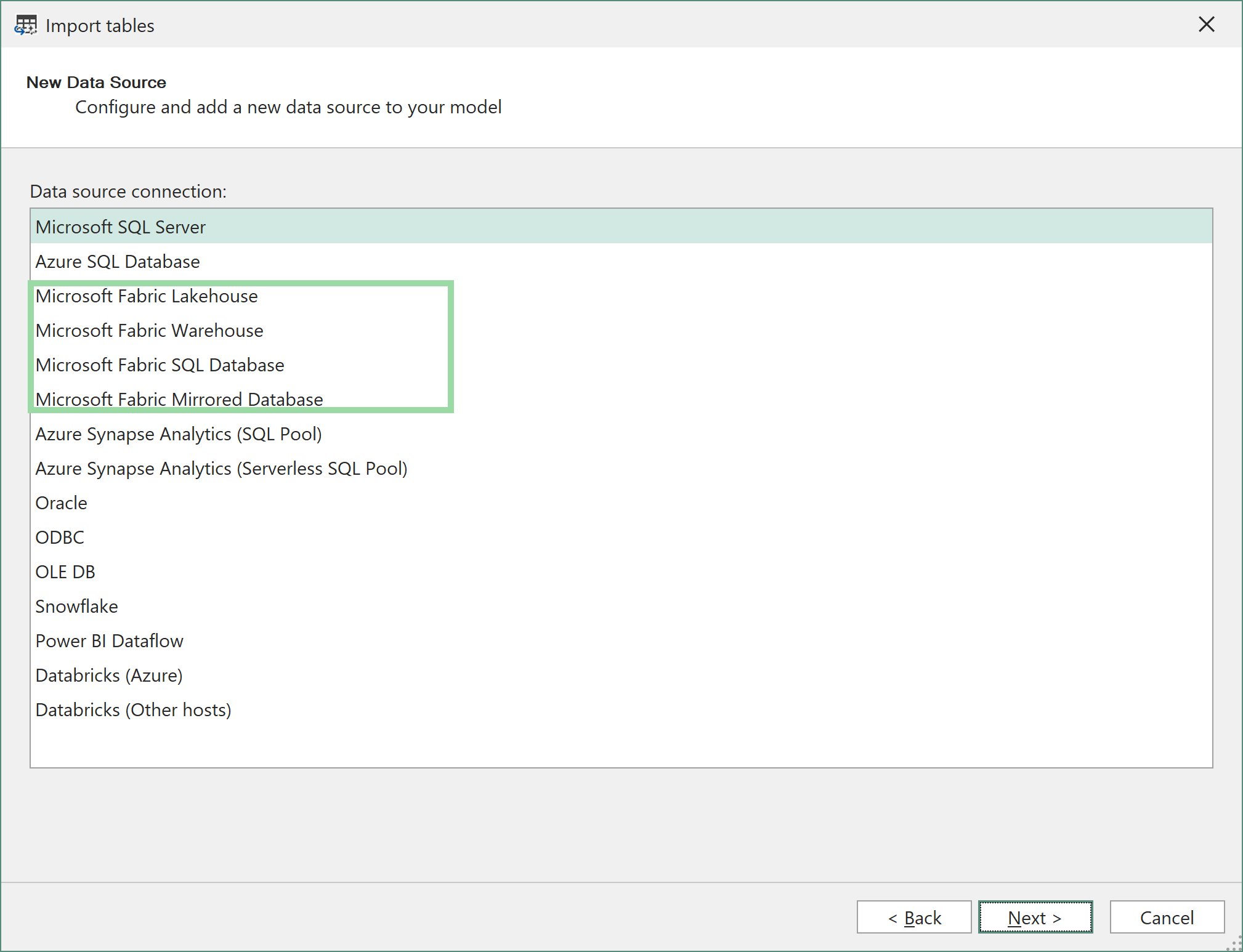
To add Direct Lake tables using Tabular Editor 3's Table Import Wizard, choose Microsoft Fabric Lakehouse, Microsoft Fabric Warehouse, Microsoft Fabric SQL Database or Microsoft Fabric Mirrored Database as the source:
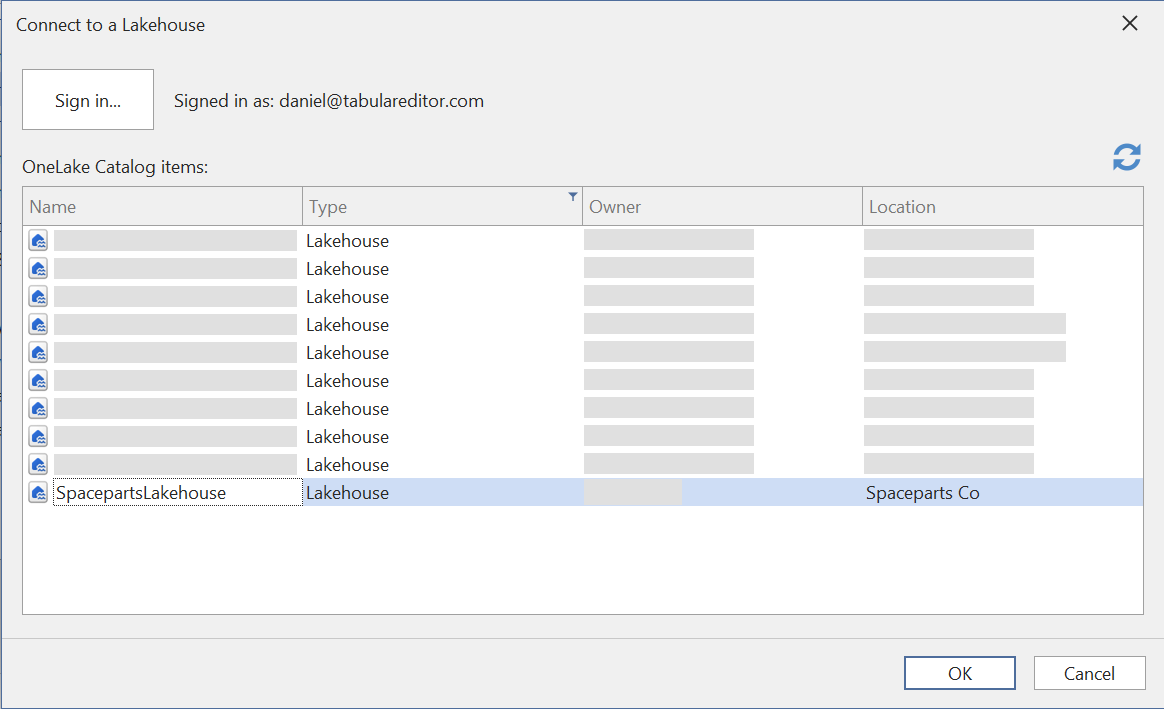
After signing in, you will be presented with a list of all available Fabric Lakehouses/Warehouses in workspaces you have access to. Select the one you want to connect to and hit OK:
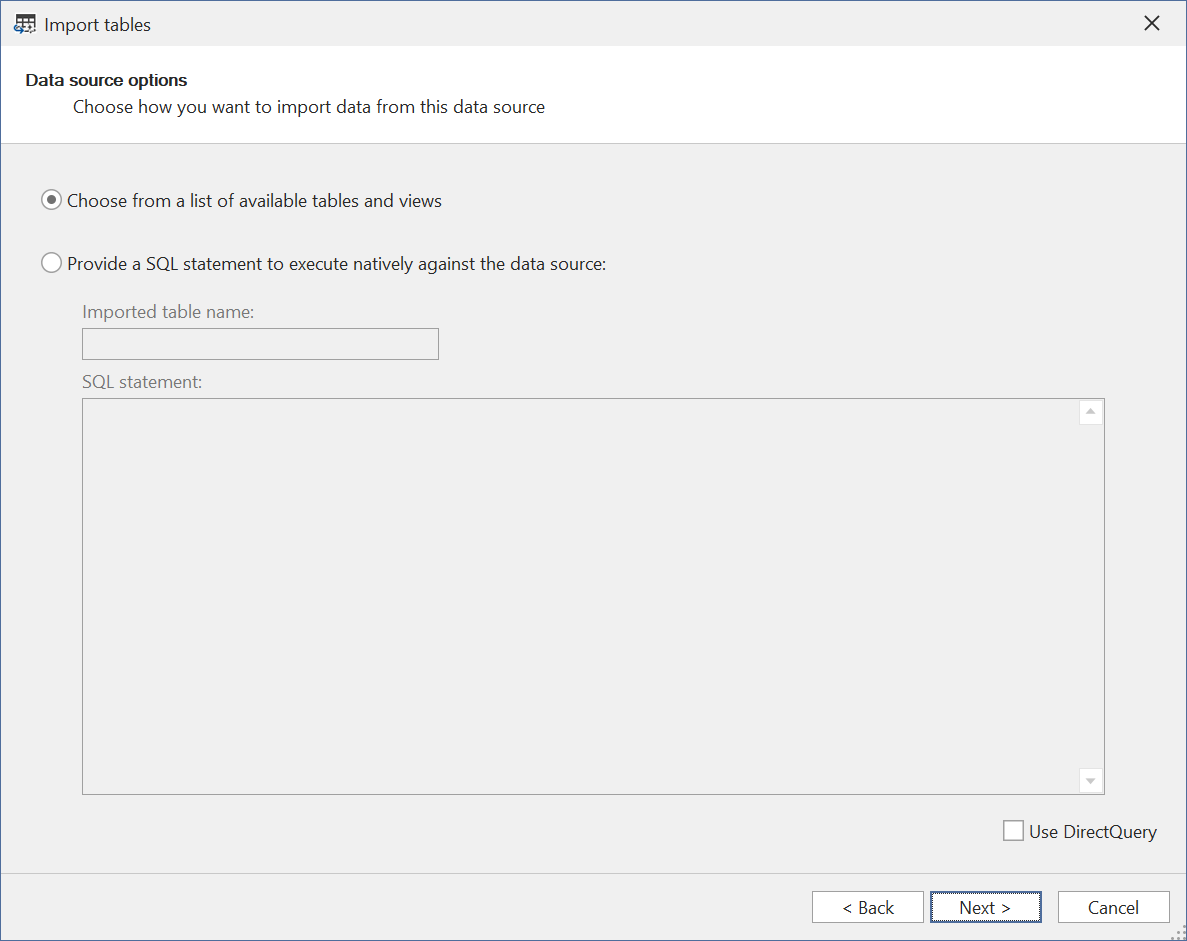
Unless you want to specify a custom SQL query, or configure the tables for DirectQuery mode, simply hit Next to select the tables from a list of tables/views in the source:
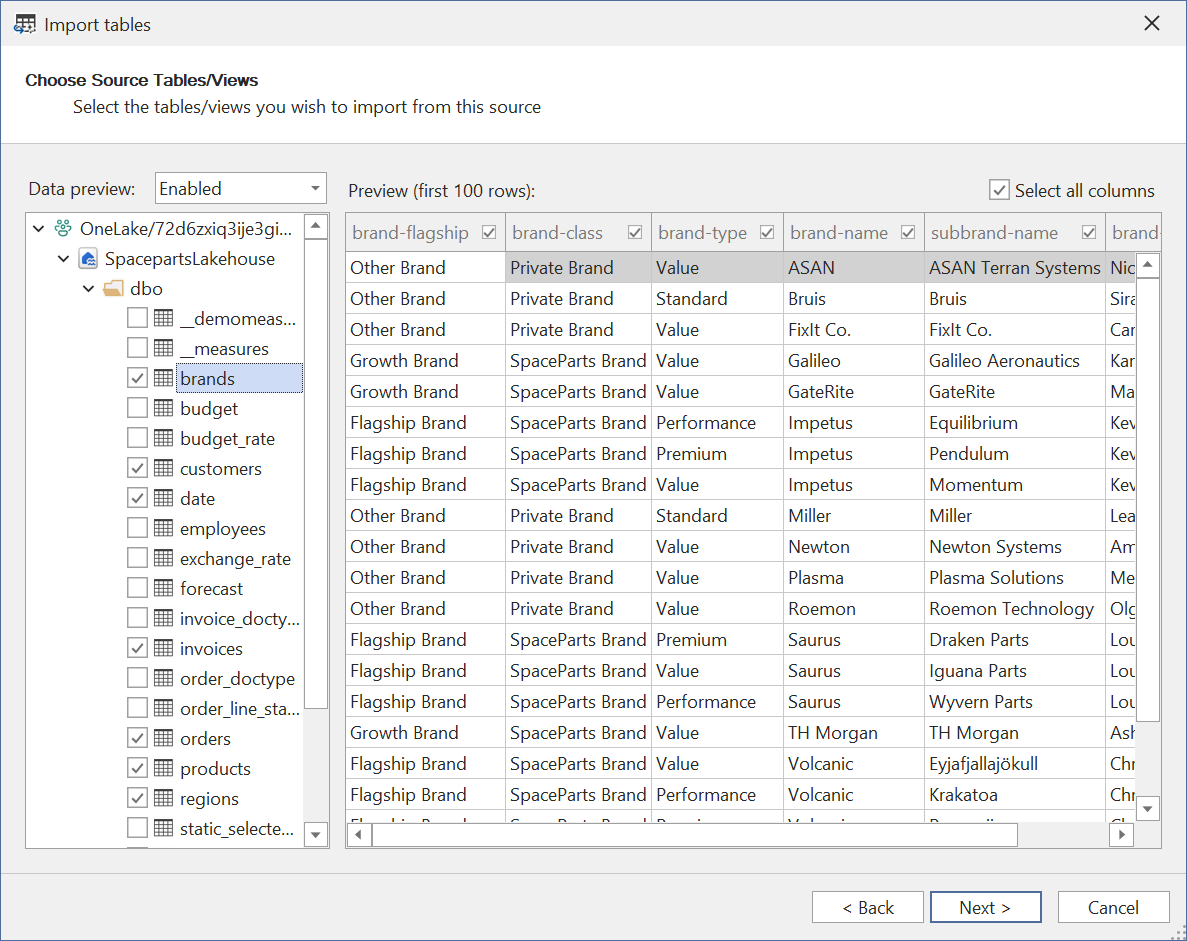
Select the tables/views you wish to import. Note that non-materialized views are not supported in Direct Lake on OneLake mode. Attempting to add such a view to the model will result in an error upon saving the model metadata.
On the last page, choose which mode you want the table partition to be configured with:
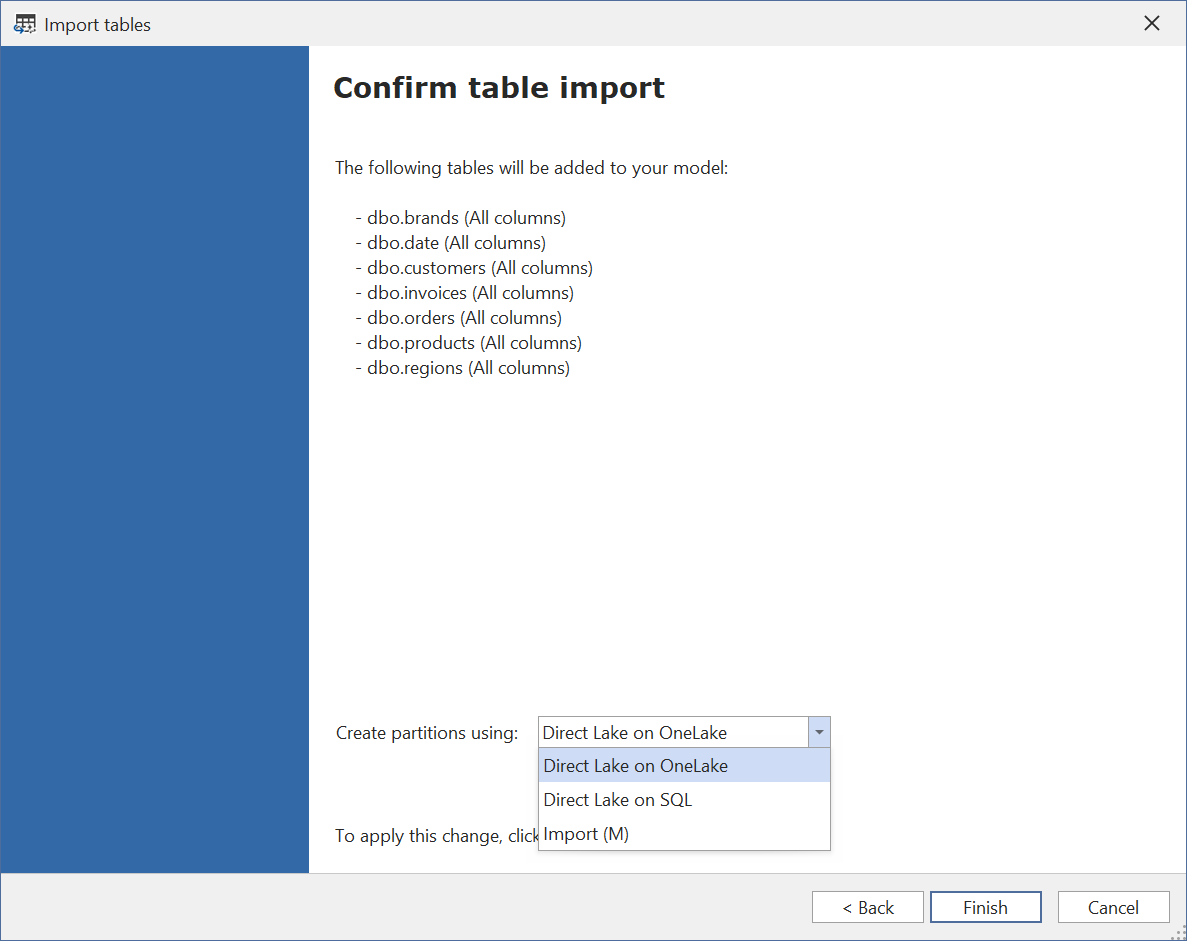
The choices are:
- Direct Lake on OneLake
- Direct Lake on SQL
- Import (M)
Note
If you're working on a model that already contains tables, one or more of the choices mentioned above may not be available, if the model does not support combining tables in different storage modes. For example, if the model contains a table in Direct Lake on SQL mode, you cannot add tables in other modes.
The imported table already has its columns, in the same order as in the source, and you don't need to run Update Table Schema after the import. If Tabular Editor can't determine the SQL analytics endpoint of the Lakehouse or Warehouse, and the import settings don't specify one, the import fails with an error that names the missing setting, and no table is created.
Role-playing dimensions
A role-playing dimension is a dimension table related to more than one column of the same fact table, for example a Date table related to both the order date and the ship date of a Sales table. Pick a setup for the Direct Lake semantic model:
| Setup | Model tables | Requires |
|---|---|---|
| Inactive relationships | One Date table with an active relationship to one date column and inactive relationships to the others. Measures for the other roles activate their relationship with USERELATIONSHIP. | Any Direct Lake model |
| One source table per role | One Direct Lake table per Delta table, for example DimDate and DimShipDate. |
A separate table for each role in the Lakehouse/Warehouse |
| Import tables for the extra roles | A Direct Lake Date table for the main role and Import tables for the other roles. See Composite models. | Direct Lake on OneLake |
| Duplicated Direct Lake table | A copy of the Date table, made with Duplicate in the TOM Explorer, that reads the same Delta table. | New tables added with the Table Import Wizard. See Duplicated Direct Lake tables. |
| One shortcut per role | A copy of the Date table for each role, each reading its own OneLake shortcut to the same Delta table. See One shortcut per role. | A shortcut for each role in the Lakehouse |
Duplicated Direct Lake tables
A duplicated Direct Lake table keeps the SourceLineageTag values of the original table and its columns. In a Direct Lake table, SourceLineageTag holds the name of the table or column in the Lakehouse/Warehouse, so the original and the copy read the same Delta table. While the model contains both tables, adding a table through the Edit tables dialog in Power BI web modeling fails with the error "Sequence contains more than one matching element". The Table Import Wizard adds tables to a model that contains duplicated Direct Lake tables. If the copy reads a shortcut, as described in One shortcut per role, Edit tables works on the model.
When you delete a Direct Lake table in Power BI web modeling, the source table is added to the PBI_RemovedChildren annotation on the shared expression. If another table in the model reads the same Delta table, Power BI web modeling then fails with the error "A child can't be both removed and added" when it lists the tables of the Lakehouse/Warehouse. Remove the entry in Tabular Editor 3:
- Open the semantic model in Tabular Editor 3.
- In the TOM Explorer view, expand Shared Expressions and select the expression that the Direct Lake partitions reference, typically
DatabaseQuery. - In the Properties view, under Annotations, remove the entry for the Delta table from the
PBI_RemovedChildrenvalue. Delete the annotation if no entries remain. - Save the model.
Microsoft describes the annotation in Lineage tags for Power BI semantic models.
One shortcut per role
A OneLake shortcut appears as a separate table in the Lakehouse and reads the Delta table it targets. Microsoft supports shortcuts as sources for both Direct Lake on OneLake and Direct Lake on SQL tables. When each role table reads its own shortcut, every Direct Lake table in the model has its own source table, and Edit tables and refresh in Power BI work on the model. The copies keep the column names, descriptions, display folders and other changes made to the original table.
- In the Lakehouse, create a shortcut under Tables for each extra role, with the Delta table of the dimension as its target. For example, create
d_date_shipwithd_dateas its target. - In the TOM Explorer view, right-click the original table, select Duplicate and rename the copy.
- Expand Partitions under the copy, select its entity partition and set Entity Name in the Properties view to the shortcut name.
- Select the copy and set Source Lineage Tag to the shortcut name, in the same format as the value on the original table. If the original table has
[dbo].[d_date], enter[dbo].[d_date_ship]. - Save the model.
The columns of the copy keep their SourceColumn and SourceLineageTag values, which match the columns of the shortcut. Duplicate copies the measures of the original table under new names. Delete the measures the role table doesn't need.
Inspecting a Direct Lake partition
A Direct Lake partition has no query expression. When you select one in the TOM Explorer view, the Expression Editor shows its Data Coverage Definition Expression, or nothing if the partition has no data coverage definition. Partitions generated by an incremental refresh policy behave the same way.
Power Query (M) expressions
This section contains a more technical description on how the TOM objects and properties need to be configured, in case you want to manually set up tables for Direct Lake mode without using the Table Import Wizard.
Direct Lake on OneLake
To manually set up a table for Direct Lake on OneLake mode, you need to do the following:
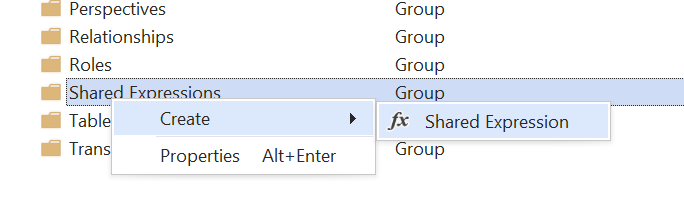
- Create Shared Expression: Direct Lake tables use "Entity" partitions, which must reference a Shared Expression in the model. Start by creating this shared expression, if you do not have it already. Name it
DatabaseQuery:
- Configure Shared Expression: Set the Kind property of the expression you created in step 1 to "M", and set the Expression property to the following M query, replacing the IDs in the URL for your Fabric workspace and Lakehouse/Warehouse:
let
    Source = AzureStorage.DataLake("https://onelake.dfs.fabric.microsoft.com/<workspace-id>/<resource-id>", [HierarchicalNavigation=true])
in
    Source
- Create Table and Entity Partition: Create a new table in the model (Alt+5), then expand the table partitions in the TOM Explorer, and create new Entity Partition:
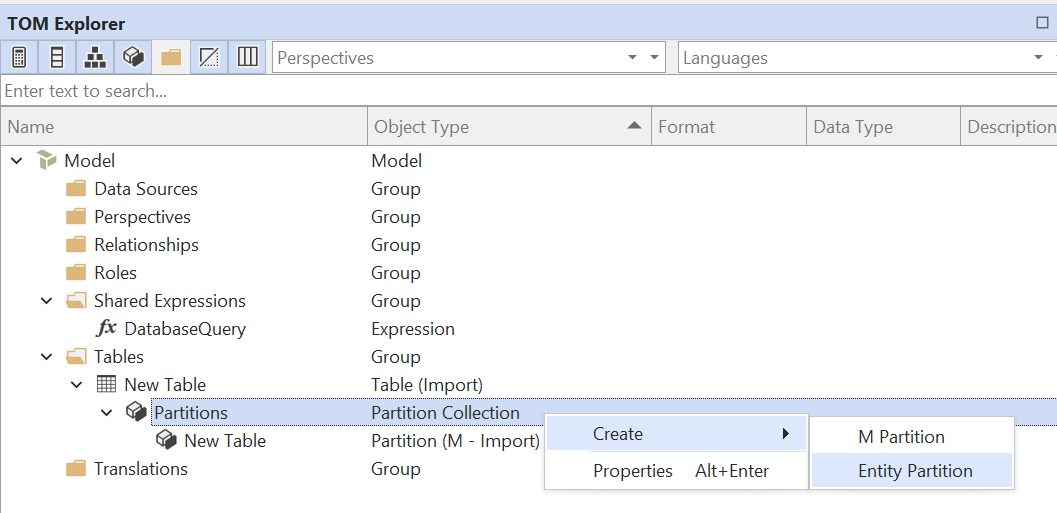
Delete the regular import partition that was automatically created when you created the table.
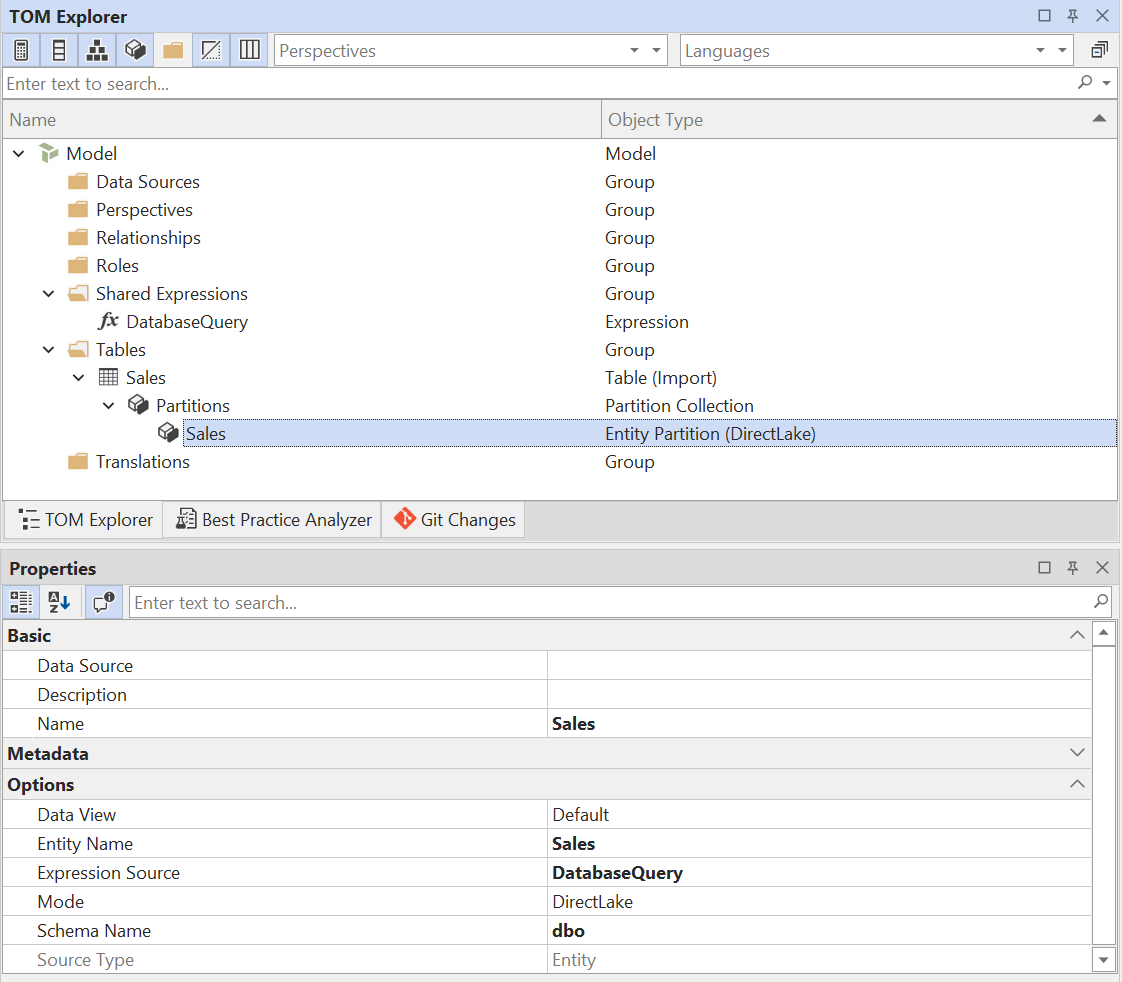
- Configure Entity Partition: Set the following properties on the Entity Partition:
| Property | Value |
|---|---|
| Name | (Recommended) Set to the same name as the table |
| Entity Name | (Required) Set to the name of the table in the Lakehouse/Warehouse |
| Expression Source | (Required) Set to the Shared Expression you created in step 1, typically DatabaseQuery |
| Mode | (Required) DirectLake |
| Schema Name | (Optional) Set to the schema name in the Lakehouse/Warehouse, if applicable. If not set, the default schema will be used. |
The final result should look like this:
- Update column metadata: At this stage, you should be able to use Tabular Editor's Update Table Schema feature to update the column metadata for the table. This will automatically retrieve the column names and data types from the Lakehouse/Warehouse:
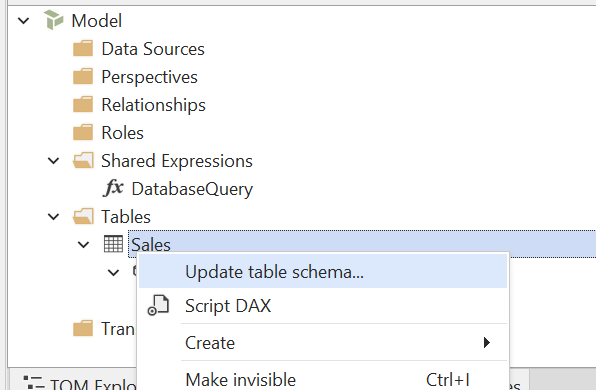
Alternatively, manually add Data Columns to the table (Alt+4) and specify the Name, Data Type, Source Column and any other relevant properties for each column.
Note
When a Direct Lake table is added to the model, it needs to be manually "refreshed" after the first metadata deployment. Otherwise, the table will not contain any data when queried. This refresh only needs to be performed once. Tabular Editor 3 will automatically refresh the table when the model metadata is saved, if the Auto-refresh when saving new tables under Tools > Preferences > Model Deployment > Data Refresh.
Direct Lake on SQL
To manually set up a table for Direct Lake on SQL mode, follow the steps in the section above for Direct Lake on OneLake, but use the following M query in the Shared Expression instead:
let
    database = Sql.Database("<sql-endpoint>", "<warehouse/lakehouse name>")
in
    database
Replace <sql-endpoint> with the connection string of the SQL Analytics Endpoint of the Fabric Warehouse or Lakehouse, and <warehouse/lakehouse name> with the name of the Warehouse or Lakehouse.
Import from Lakehouse / Warehouse
If you want to configure a table for Import mode while sourcing data from a Fabric Lakehouse or Warehouse, the steps are as follows:
- Create table: Create a new table in the model (Alt+5), then expand the table partitions in the TOM Explorer. By default, you should see a single partition of type "Import" created automatically:
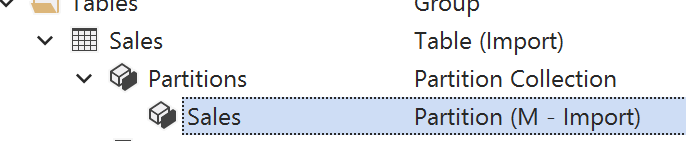
- Configure Import Partition: Set the following M query on the Import Partition:
let
    Source = Sql.Database("<sql-endpoint>","<warehouse/lakehouse name>"),
    Data = Source{[Schema="<schema-name>",Item="<table/view-name>"]}[Data]
in
    Data
Replace <sql-endpoint> with the connection string of the SQL Analytics Endpoint of the Fabric Warehouse or Lakehouse, and <warehouse/lakehouse name> with the name of the Warehouse or Lakehouse.
Replace <schema-name> with the schema name in the Warehouse/Lakehouse, and <table/view-name> with the name of the table or view you want to import. Note that tables in Import Mode can use non-materialized views as the data source, since the data is queried through the SQL endpoint during refresh operations.
- Update column metadata (manual setup only): Because a partition you configured by hand has no columns, use Tabular Editor's Update Table Schema feature to retrieve the column names and data types from the Lakehouse/Warehouse. Alternatively, create Data Columns manually (Alt+4) and specify the
Name,Data Type,Source Columnand any other relevant properties for each column.
Converting between storage modes
It is straightforward to convert between Direct Lake on SQL and Direct Lake on OneLake using the information in this article, because you only need to modify the M query of the Shared Expression referenced by the Direct Lake partitions.
If you want to convert from Import to Direct Lake it's slightly more complicated because of the different partition types involved.
To make things easier, we have prepared a set of C# scripts that can help you convert between different storage modes: