MCP server
Tabular Editor 3 can act as an MCP (Model Context Protocol) server. Agents that support MCP, such as Claude Code, GitHub Copilot, VS Code agent mode, Codex or Cursor, connect to the running instance to read, query and analyze the semantic model you have open, and to change it if you grant write access. To start, select Tools > MCP Server... and register your agent.
The MCP server doesn't use an AI provider or API key configured in Tabular Editor, and your agent uses its own provider and subscription.
The agent works on the model Tabular Editor has open, including unsaved changes. That can be a Power BI Desktop model, a PBIP project, a TMDL (Tabular Model Definition Language) folder, a .bim file, a workspace database or a live connection to Analysis Services, Azure Analysis Services or Fabric. The agent uses the same tools whether the model is connected or offline, except for tools that need a live connection, such as DAX queries.
Agent changes go through the Tabular Object Model (TOM) wrapper and the C# scripting engine, with the same validation, formula fix-up and undo stack as your own edits. They appear as unsaved changes, marked in the TOM Explorer and the Properties view, and nothing is written to the source until you save.
Before you start
- Tabular Editor 3.27.0 or later, any edition.
- The AI features component installed. It's part of a default installation from 3.27.0 onwards. See Advanced installation and activation if you deploy Tabular Editor centrally, and Policies if your administrator has turned AI features off.
- An agent that supports MCP over streamable HTTP.
Start the server
- Select Tools > MCP Server....
- Review the permissions. See Set agent permissions.
- Click Start server.
The dialog shows the address the server listens on: http://127.0.0.1:42100/ unless you've changed the port. The status bar indicator changes from MCP Stopped to MCP Started, with the address in its tooltip.
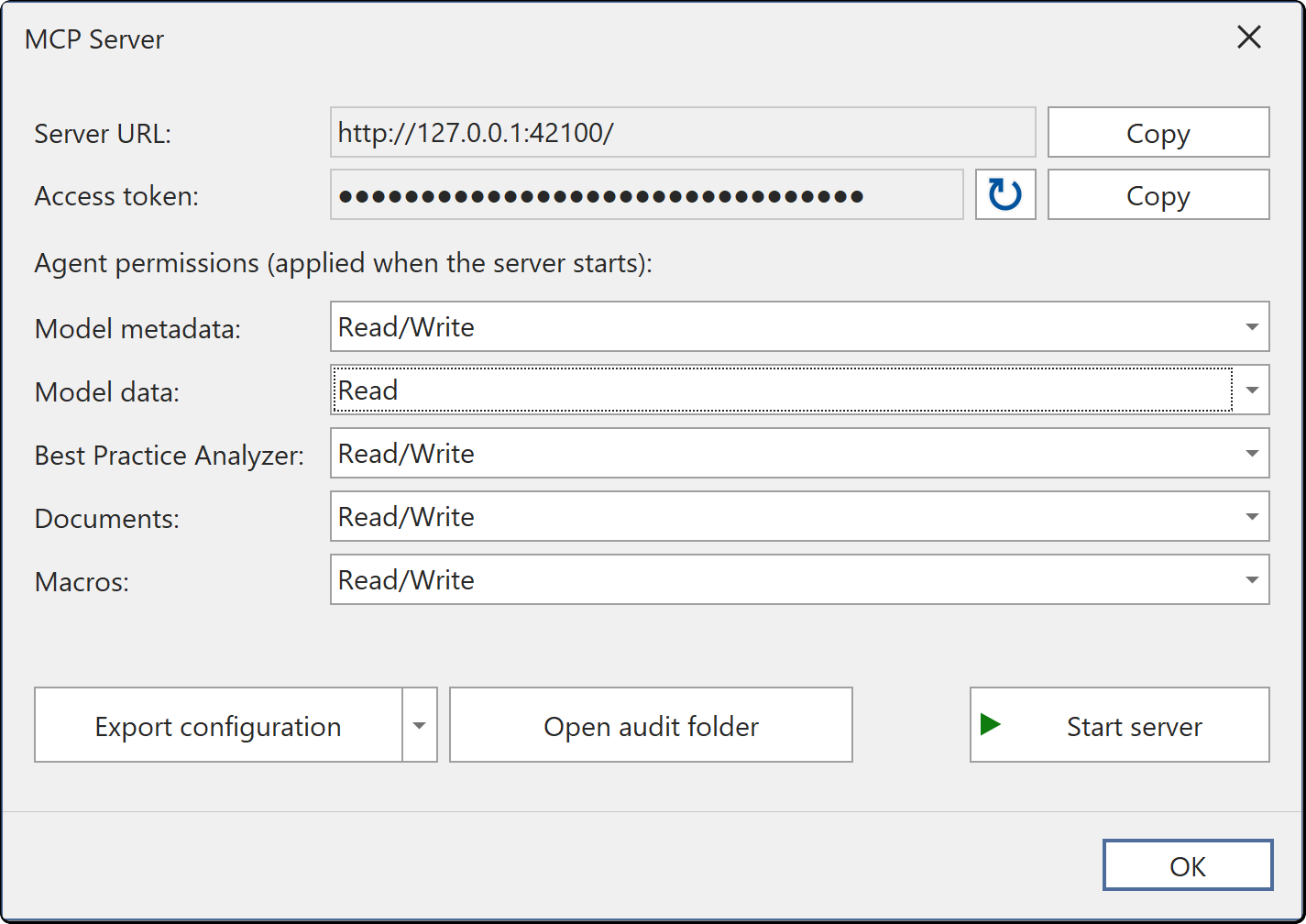

The server runs with or without a model open. If no model is open, the tool results say so, and you can open a model at any time without restarting the server.
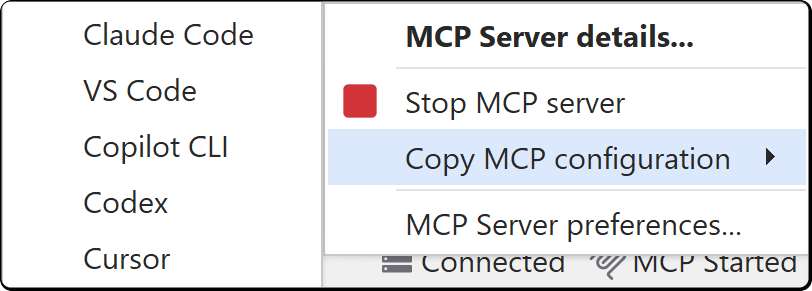
Right-click the status bar indicator to start or stop the server, copy a registration configuration or open the MCP Server preferences. Left-click it to open the dialog without starting or stopping the server.
MCP preferences
Open Tools > Preferences > AI Features > MCP Server to set the server's startup, authentication and port options.
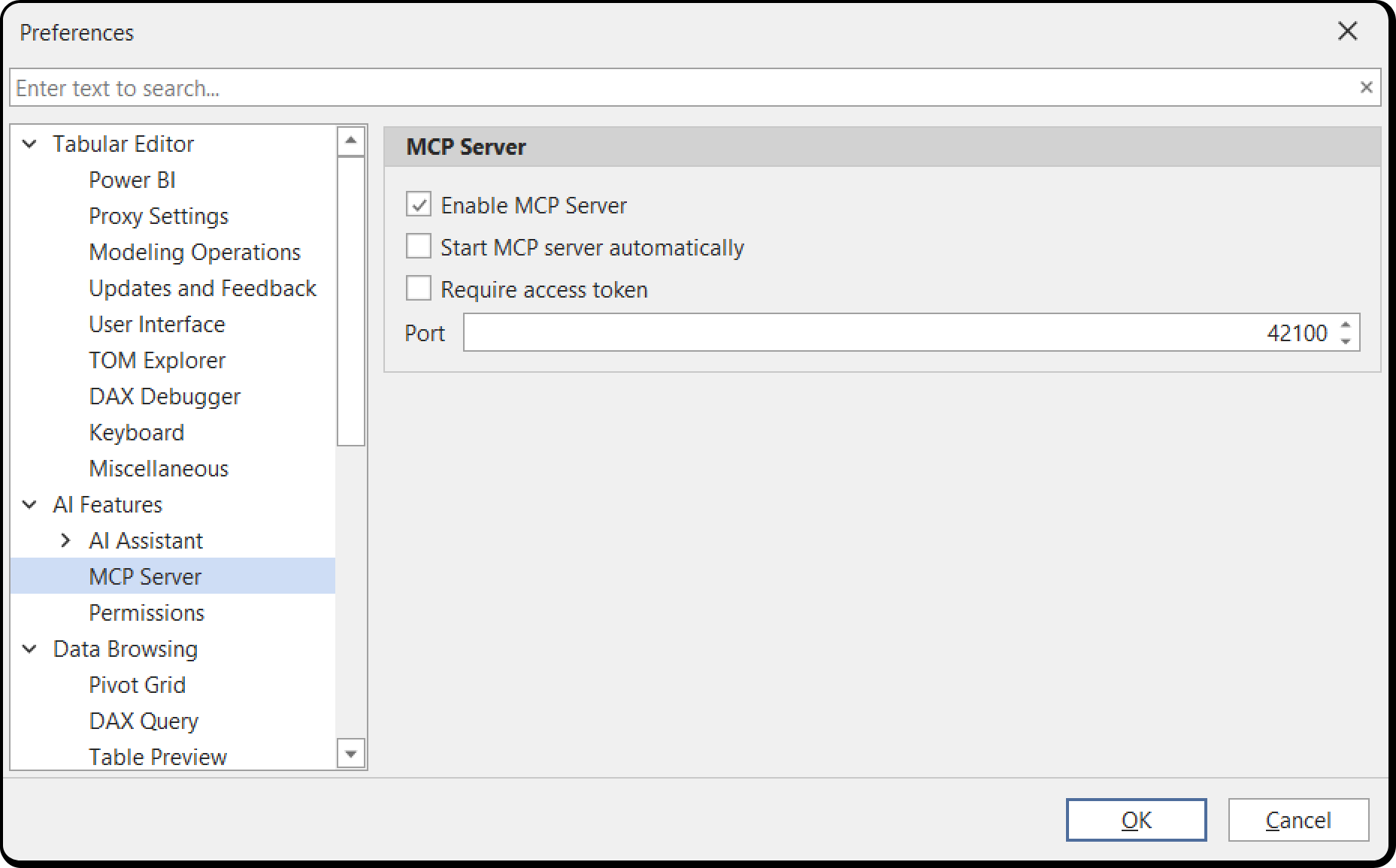
| Preference | Default | What it does |
|---|---|---|
| Enable MCP Server | On | Clearing it stops a running server and removes the menu item and the status bar indicator |
| Start MCP server automatically | Off | Starts the server when Tabular Editor starts |
| Require access token | Off | Agents must present the access token shown in the server dialog. See Running on a shared machine |
| Port | 42100 | The loopback port the server listens on, from 1024 to 49151. Changing it invalidates existing agent registrations |
Register your agent
In the server dialog, select your agent from Export configuration and paste the copied configuration into your agent. You register each agent once, and the configuration registers the server under the name tabular-editor.
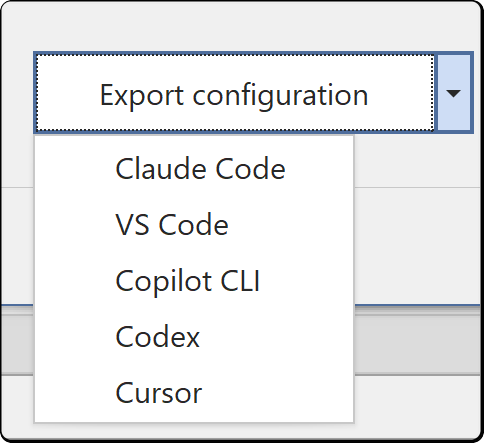
Claude Code: run the copied command in a terminal:
claude mcp add --transport http tabular-editor http://127.0.0.1:42100/
VS Code: add to your MCP configuration:
{
  "servers": {
    "tabular-editor": {
      "type": "http",
      "url": "http://127.0.0.1:42100/"
    }
  }
}
Copilot CLI: add to ~/.copilot/mcp-config.json:
{
  "mcpServers": {
    "tabular-editor": {
      "type": "http",
      "url": "http://127.0.0.1:42100/"
    }
  }
}
Codex: add to ~/.codex/config.toml:
[mcp_servers.tabular-editor]
url = "http://127.0.0.1:42100/"
Cursor: add to ~/.cursor/mcp.json:
{
  "mcpServers": {
    "tabular-editor": {
      "url": "http://127.0.0.1:42100/"
    }
  }
}
When Require access token is on, the exported configuration includes the token in each client's format. Copy the configuration from the dialog; don't write it by hand.
Any other MCP client connects to http://127.0.0.1:42100/ over streamable HTTP. If Require access token is on, send the token in an Authorization: Bearer <token> header.
Check that it worked
Ask your agent:
What model am I connected to in Tabular Editor?
The agent answers with the model name, how the model is loaded, whether it has unsaved changes and its compatibility level, or reports that no model is open. No prompt appears in Tabular Editor.
The model name the agent receives follows the Model source detail setting under Tools > Preferences > Tabular Editor > User Interface. With Name only, the agent receives no file paths or server names, and with Hidden, it receives Model loaded in place of the model name.
Set agent permissions
Permissions control which tools an agent gets, and the AI Assistant uses the same permissions. Set them in the Tools > MCP Server... dialog or under Tools > Preferences > AI Features > Permissions, which both edit the same setting.
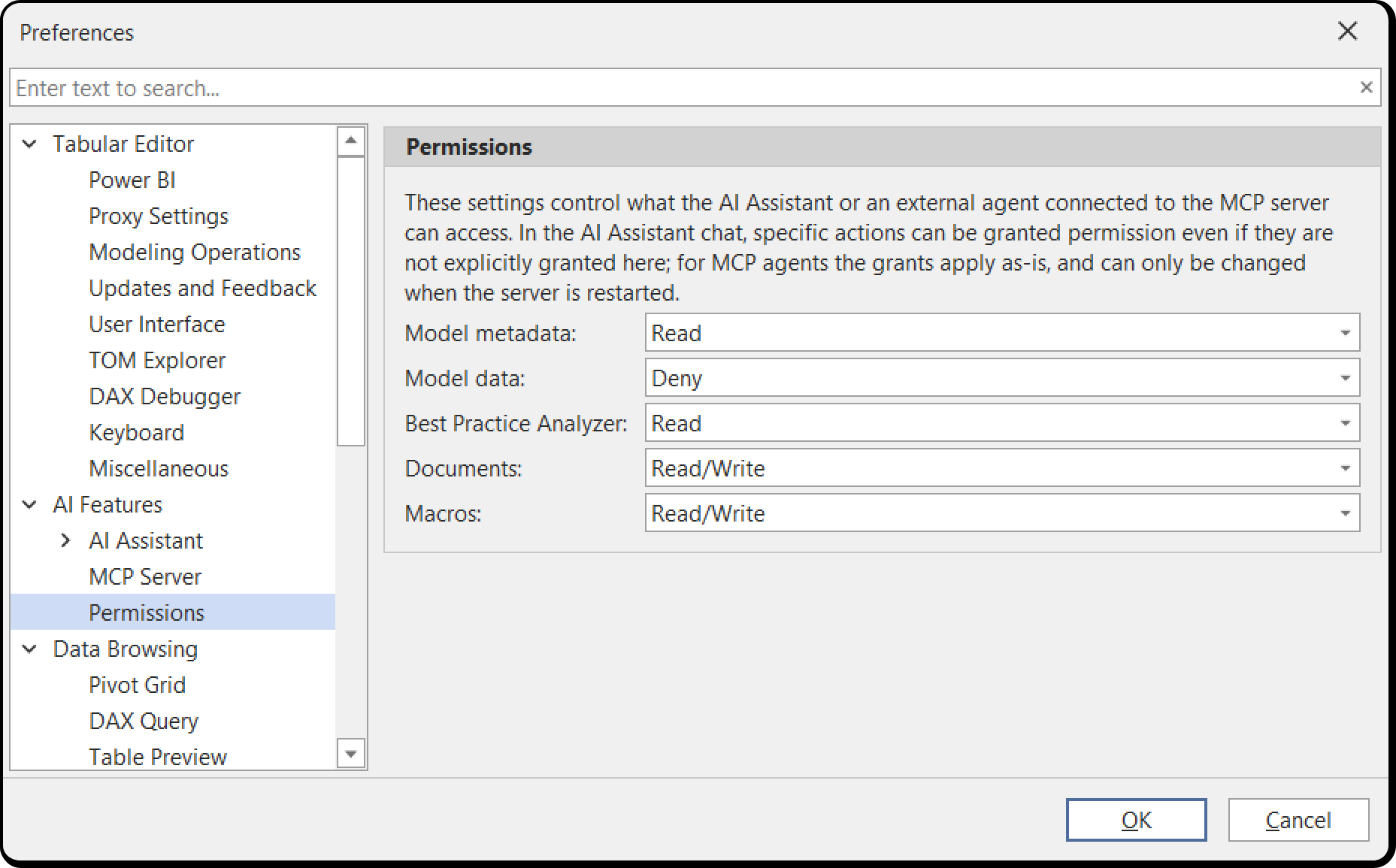
Hover over a permission's label or dropdown to see what each level allows. If an administrator has capped a resource by policy, the dropdown is read-only and indicates the policy.
Each resource has an access level:
| Resource | Default | What the agent gets |
|---|---|---|
| Model metadata | Read | Read: tables, columns, measures, expressions, descriptions, relationships, VertiPaq Analyzer statistics and the model's error and warning messages. Write: the ability to change the model through C# scripts |
| Model data | Deny | Read: DAX query results (data values from your model) and the text of errors returned by Analysis Services, which can contain data values. DAX queries need a live connection |
| Best Practice Analyzer | Read | Read: the rule set and the analysis results. Write: adding and modifying rules |
| Documents | Write | Read: the contents of your open DAX queries, C# scripts and DAX scripts, and the errors and warnings of every open document, Pivot Grids included. Write: modifying them, and creating C# scripts and DAX queries. Pivot Grid layouts can't be read or modified |
| Macros | Write | Read: your macro library, with names, descriptions and code. Write: no additional tools in this version |
Write (labeled Read/Write in the dropdowns) includes Read, and Model data has no Write level.
Documents defaults to Write, which lets an agent create tabs and overwrite the contents of open DAX queries, C# scripts and DAX scripts. The agent doesn't run them, and the model doesn't change. If you keep unsaved work in those tabs, set Documents to Read.
Raising these grants above their defaults gives the agent more access:
- Model data > Read sends values from your model to your agent, and through it to your agent's provider. Grant it when the agent needs to check results against real values.
- Model metadata > Write lets the agent change the model through C# scripts. See How an agent changes your model for the safeguards.
Important
Permissions are read when the server starts, and an agent gets its tool list when it connects. After changing a grant, stop and start the server, then reconnect the agent. Until then, the agent keeps the permissions that were in force when it connected.
What the agent can do
The agent's tools depend on your grants, and the following table lists what you can ask for and the grant each request needs.
| Request | Grant needed |
|---|---|
| Identify the Tabular Editor instance and the model it has open | None |
| Search the Tabular Editor documentation, blog, GitHub issues and discussions | None |
| Look up the scripting API: the properties, methods and signatures on the model objects, for the Tabular Editor version you're running | None |
| Get an overview of the tables, their column and measure counts and every relationship | Model metadata > Read |
| Get full detail for named objects, including expressions, descriptions, format strings and data types | Model metadata > Read |
| Search the model by name, description, DAX or M expression, format string or annotation | Model metadata > Read |
| Get the full model. This uses a lot of tokens, and the tool description warns the agent | Model metadata > Read |
| See the objects selected in the TOM Explorer | Model metadata > Read |
| Get VertiPaq Analyzer statistics: table sizes, column cardinalities and memory use | Model metadata > Read |
| List the effective Best Practice Analyzer rules, your own included, and run the analysis | Best Practice Analyzer > Read |
| Add or change rules in your local collection | Best Practice Analyzer > Write |
| Run a DAX query and get rows back. A query returns 100 rows by default and at most 500 | Model data > Read and Model metadata > Read |
| List the model's errors, warnings and Analysis Services messages, root causes first | Model metadata > Read. The text of Analysis Services errors also needs Model data > Read |
| List your open DAX queries, C# scripts, DAX scripts and Pivot Grids, with the active document and each document's error and warning counts | Model metadata > Read |
| Read the contents of an open DAX query, C# script or DAX script | Documents > Read |
| Read the errors and warnings of one open document, including the errors the server returned when it last ran | Documents > Read. The text of server errors also needs Model data > Read |
| Edit an open DAX query, C# script or DAX script, or open a new C# script or DAX query for review | Documents > Write |
| Read your macro library | Macros > Read |
| Change the model. See How an agent changes your model | Model metadata > Write |
Select objects in the TOM Explorer before you refer to them in a prompt, for example before asking "format these consistently". To ask about an error in a query or script, make its tab the active document first, for example before asking "why am I seeing this error in this query?".
Before a C# script or DAX query from the agent opens as a document, Tabular Editor compiles the script or validates the query against the open model, and returns any errors to the agent. DAX query validation needs Tabular Editor connected to Analysis Services or Power BI.
Note
Querying data needs a live connection, and VertiPaq statistics need a connection or statistics you've already collected. Tool availability is set when the agent connects, so if you connect the model afterwards, reconnect the agent.
How an agent changes your model
With Model metadata > Write, an agent changes your model by creating a C# script in the background. Tabular Editor compiles the script, checks it for safety and runs it against the open model.
A script can do anything the C# scripting API supports, for example add measures, columns, calculation groups, perspectives, translations, relationships and refresh policies, or bulk-rename and format objects. An agent-run script has these properties:
- its changes are one undo entry, C# script (MCP), and Ctrl+Z undoes the whole script. If a document has focus, Ctrl+Z undoes typing in the document. Click the TOM Explorer first, or select Undo C# script (MCP) in the Edit menu. See Undo in text editors.
- if the script throws an exception part-way through, all its changes are rolled back.
- the agent receives a list of every object the script added, changed or removed, plus anything the script printed. If the script introduced or resolved DAX errors, the result also lists them, grouped by root cause.
- messages from
Output,Info,WarningorErrorare returned to the agent as part of the result, and no dialog opens. - while a long call runs, a Please wait indicator appears and clicks in Tabular Editor are discarded.
- changed objects and properties are marked in the TOM Explorer and the Properties view until you save. Show changes filters both views to the changes, and right-click Revert undoes a single property, a single object or a whole branch.
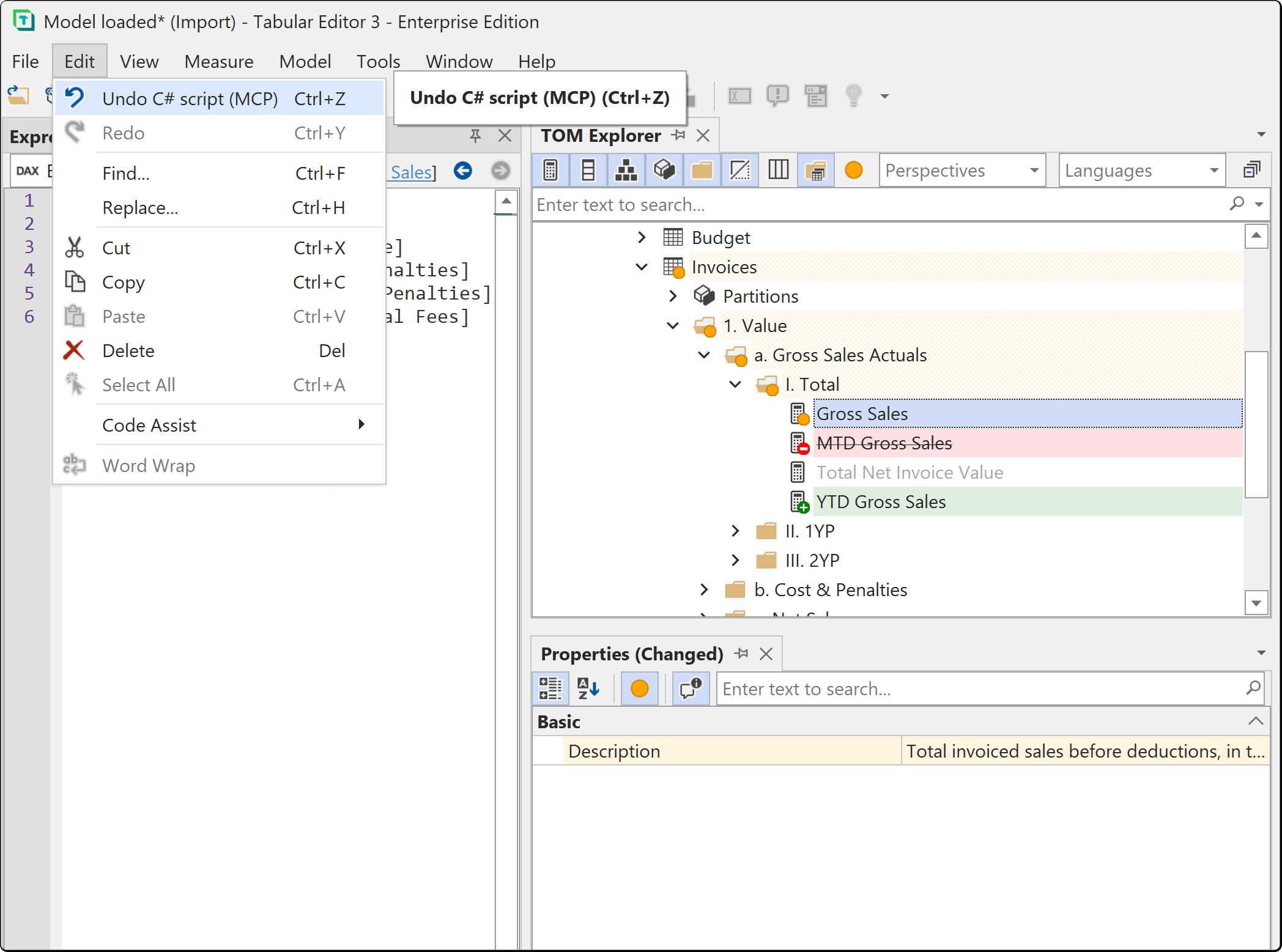
The AI Assistant chat runs scripts the same way, with the same single undo step and rollback, under the undo entry C# script (AI Assistant). Agent scripts have no preview dialog and no Cancel. Review their changes afterwards in the TOM Explorer and the Properties view.
Blocked operations
These are blocked regardless of your grants:
ExecuteCommand, which runs raw TMSL or XMLA, always fails in an agent-run script.- An agent script that accesses the file system, makes a web request or references an external assembly doesn't run. The check is the same analysis of the compiled script that the
BlockUnsafeScriptspolicy uses; see What counts as staying within the model for the full list. What happens to the script depends on your grants and policies:- With Documents > Write, the script opens as an Agent script (review) document, and the tool result tells the agent to have you review and run it.
- Without Documents > Write, the script doesn't run and no document opens.
- With the
BlockUnsafeScriptspolicy set, the script doesn't run and no document opens.
- The DAX helpers inside a script need Model data > Read, the same as the query tool.
Example tasks
Fix Best Practice Analyzer violations
Open a model and ask:
Run the Best Practice Analyzer and tell me what's worth fixing, worst first.
Follow up with "fix the format string violations". If Model metadata > Write is granted, the agent writes one script and runs it, and the changed objects are marked orange in the TOM Explorer. Show changes in the Properties view shows the before and after values per property. Right-click Revert on any change you don't want, then save.
Add measures from a specification
Point the agent at a specification, a ticket or a spreadsheet of measure definitions:
Add the measures in requirements.md to the Sales table. Follow the naming and format strings already used there.
The agent reads requirements.md from its own workspace.
Verify results with a query
With Model data > Read granted, the agent can run DAX to check its work:
Confirm the new Margin % measure gives the same total as the old calculation for 2025.
It writes the DAX query, runs it and compares the results.
Draft a script without running it
With Documents > Write, the agent can put a C# script or DAX query into a document that you review and run yourself, for example to check a change before it runs or to run it against another model later:
Write me a script that renames every measure to sentence case, but don't run it.
The script opens as a document in Tabular Editor, compiled and safety-checked. Run it after you've read it.
Tip
Review and save between tasks to keep each set of unsaved changes small.
Running several instances
Each Tabular Editor instance hosts its own server on its own port. To work on two models at once, open each in its own instance and connect one agent to each.
For a second server, start the second instance, open Tools > MCP Server... and click Start server. If the configured port is taken, a prompt offers the first free port among the next 20, or an error appears if none is free. You can also set another port under Tools > Preferences > AI Features > MCP Server.
Register the second port with your agent under its own name, and name the instance you mean in your prompts.
Running on a shared machine
The server binds to 127.0.0.1, which other machines can't reach. It also rejects browser requests with a non-local Origin header.
When Require access token is off, any process on the machine can connect without credentials. On a host where several people are signed in at once, such as a Remote Desktop or Citrix server, that includes processes in other people's sessions.
Select Require access token under Tools > Preferences > AI Features > MCP Server and restart the server. Agents must then present the token shown in the server dialog, and requests without it are rejected.
Select Regenerate token (the refresh button beside the token) to issue a new token, which invalidates existing registrations and restarts a running server. If the token is exposed, regenerate it and re-register your agents. Administrators can make the token mandatory for everyone with the RequireMcpAccessToken policy, which also locks the preference. See Policies.
What leaves your machine
When you use the MCP server, Tabular Editor doesn't contact an AI provider and only answers tool calls from processes on your machine, over a loopback connection. The knowledge base the agent searches is a local database that ships with Tabular Editor and is updated from Tabular Editor's service.
Your agent sends data to its provider under your subscription and that provider's terms, and your agent's settings control what is sent. With Model data at its default, Deny, the agent receives no data values from Tabular Editor, and the text of Analysis Services errors is replaced with a fixed sentence. To keep file paths and server names out of what the agent receives, set Model source detail under Tools > Preferences > Tabular Editor > User Interface to Name only or Hidden.
See Security overview for the wider picture, including the AI Assistant, which calls a provider directly and is configured separately.
Administrator controls
The MCP server is on by default, and any user can turn it off. Administrators can use these policies to control how the MCP operates:
| Policy | Edition | What it does |
|---|---|---|
DisableMcpServer |
All | Removes the MCP server. The AI Assistant chat is unaffected |
DisableAi |
All | Turns off all AI functionality, the MCP server included. With a REG_DWORD value of 1, the installer also leaves the AI component out of new installations and removes it on upgrade |
RequireMcpAccessToken |
All | Forces token authentication and locks the preference |
DisableCSharpScripts |
All | Stops an agent running a C# script and drafting one into a document. Drafting a DAX query, and every tool that only reads, is unaffected |
BlockUnsafeScripts |
Enterprise | Allows only scripts that stay within the model, for every script in Tabular Editor. An agent script that accesses files, the network, other processes or external assemblies doesn't run, and no review document opens |
Max... and McpMax... permission limits |
Enterprise | Cap each resource. The Max... limits apply to the AI Assistant and the MCP server. The McpMax... limits apply to the MCP server alone and can only lower the Max... limit |
AiAuditLogPath, AiAuditLogRetentionDays |
Enterprise | Set the audit log location and retention |
AiProvider and related values |
Enterprise | Lock the AI Assistant's provider. The MCP server isn't affected |
Warning
Without an Enterprise license, any Enterprise policy value stops the AI Assistant and the MCP server from starting and removes the menu item and the status bar indicator. A BlockUnsafeScripts value also blocks all scripts and macros, so deploy Enterprise policies only to Enterprise-licensed machines (see What happens without Enterprise Edition).
On Enterprise Edition, Tabular Editor keeps a local audit log of AI Assistant and MCP server activity, including every tool an agent called and the full text of any C# script it ran. Prompts, replies and data values aren't recorded. Open audit folder in the server dialog and on Tools > Preferences > AI Features opens the log folder. On Desktop and Business editions, nothing is logged and neither button appears.
See Policies for the full list, the registry layout and the administrative templates.
Troubleshooting
| What you see | What's happening |
|---|---|
| The agent says it has no tools for Tabular Editor | The server isn't running, or the agent connected before it was. Check that the status bar reads MCP Started, then reconnect the agent |
| The agent can't see a permission you just granted | Grants are read at server start and the tool list is fixed at connect time. Stop and start the server, then reconnect the agent |
| The agent loses the connection after a long break | The server closes a session after 20 minutes with no requests and no open stream. Reconnect the agent |
| The agent reports no model is open | The server runs independently of your model. Open a model in Tabular Editor and ask again. You don't need to restart anything |
| The agent can't run DAX queries | Model data is Deny by default. Queries also need a live connection: against a model opened from disk, the query tool is unavailable whatever the grant |
| Connections are rejected with 401 | Require access token is on and the agent isn't sending the token. Copy the registration configuration from the dialog again. It includes the token |
| The port is already in use | Another Tabular Editor instance or another application uses it. Accept the next free port in the prompt, and update the agent's registration. If Start MCP server automatically is on, a conflict at startup shows no prompt and the indicator reads MCP Stopped |
| Tools > MCP Server... isn't in the menu | Enable MCP Server is cleared in preferences, the AI features component isn't installed, an administrator has set DisableMcpServer or DisableAi, or an Enterprise policy value is set on a machine that isn't licensed for it. See Policies |
Next steps
- AI Assistant for the full permission model and the built-in chat.
- Unsaved change indicators for reviewing and reverting what an agent did.
- C# Scripts for what a script, and therefore an agent, can change.
- Policies for governing the server across an organization.
- AI Agent Skill if your agent works on model files in a repository or a pipeline.