Getting Started with Tabular Editor 2
Tabular Editor 2 is a free, open-source Windows application for editing Analysis Services and Power BI semantic models. This page covers installation, opening and editing a model, deployment, the command line and C# scripting.
Note
This page covers Tabular Editor 2, the free, open-source version of Tabular Editor. Tabular Editor 3 is the commercial version. It adds a DAX editor with auto-complete, DAX queries, table preview, diagrams, the DAX debugger and VertiPaq Analyzer integration. Migrating from Tabular Editor 2.x compares the two products feature by feature.
Tabular Editor 3 has an MCP server that lets AI agents such as Claude Code, GitHub Copilot, Codex and Cursor read, query and change the open model.
First-time users get a free 30-day trial of Tabular Editor 3 with the Enterprise Edition feature set. The trial needs a valid e-mail address and no credit card. See Requesting a trial license.
Tools by task
Tabular Editor 2, Tabular Editor 3 and the Tabular Editor CLI cover different tasks:
| Task | Tool | Documentation |
|---|---|---|
| Edit model metadata in a free desktop application | Tabular Editor 2 | This page |
| Write DAX with auto-complete and step through it in a debugger | Tabular Editor 3 | DAX debugger |
| Run DAX queries and preview table data | Tabular Editor 3 | Refreshing, previewing and querying data |
| Deploy from a CI/CD pipeline | Tabular Editor 2 or Tabular Editor CLI | Command Line (Tabular Editor 2), CI/CD Integration |
| Run Best Practice Analyzer checks | All three | Best Practice Analyzer |
| Let an AI agent read, query and change the model open in a desktop application | Tabular Editor 3 | MCP server |
| Let an AI agent change model files or deployed models from a terminal | Tabular Editor CLI | AI Agent Skill |
Installation
Download the .msi installer or the portable .zip file from the release page. Run the .msi, or extract the .zip to a folder and run TabularEditor.exe.
The .msi registers Tabular Editor 2 as an External Tool in Power BI Desktop.
Prerequisites
Tabular Editor 2 requires .NET Framework 4.8. The .msi installer stops if .NET Framework 4.8 is missing and links to the download.
Note
Tabular Editor 2 uses the Tabular Object Model (TOM) to load and save metadata to and from Model.bim files or existing databases. The installer includes the Analysis Services client libraries.
System requirements
- Operating system: Windows version supported by .NET Framework 4.8
- .NET Framework: 4.8
Open a model
Open a model from disk with File > Open > From File... (Ctrl+O). Supported formats are Model.bim files, folders saved with Save to folder (database.json), TMDL folders, .pbit files and .pbip projects.
Open a deployed database with File > Open > From DB... (Ctrl+Shift+O). The Connect to Tabular Server dialog asks for a server name and authentication:
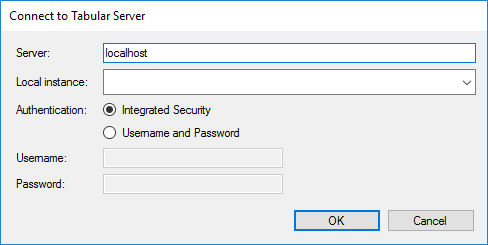
The server name accepts Analysis Services instances and Azure Analysis Services servers (asazure://<servername>). The Local instance dropdown lists running instances of Power BI Desktop, Visual Studio integrated workspaces and local Analysis Services. From the June 2025 Power BI Desktop update, external tools can change any part of a model hosted in Power BI Desktop. See Power BI Desktop Integration.
Select OK, then select a database from the list on the server.
Edit the model
The main window looks like this after a model loads:
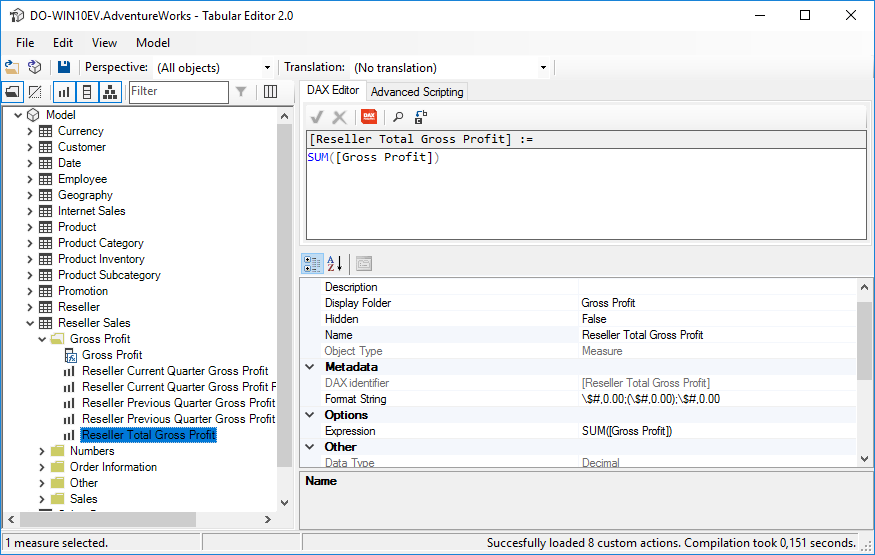
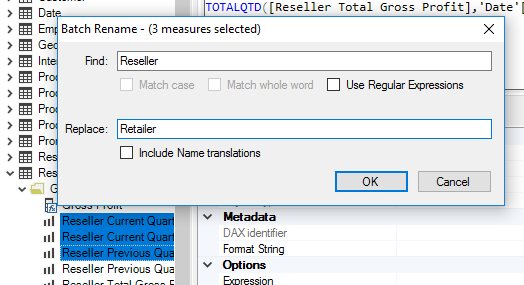
The tree on the left lists all tables in the model. Expand a table to see its columns, measures and hierarchies, grouped by display folder. The buttons above the tree toggle display folders, hidden objects and object types, and the text box filters objects by name. Right-click in the tree for common actions such as adding measures, hiding, duplicating and deleting objects. Press F2 to rename the selected object. When you select several objects, F2 opens Batch Rename:
The Expression Editor in the upper right edits the DAX expression of the selected measure or calculated column. Format DAX formats the expression through DAX Formatter.
The property grid in the lower right shows and sets object properties such as FormatString, Description, translations and perspective membership. To change DisplayFolder for several objects at once, select them with Ctrl or Shift and drag them to a folder in the tree.
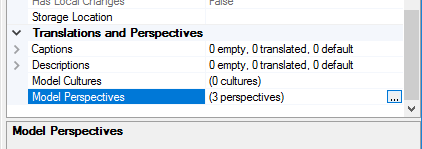
To edit perspectives or translations, select the Model object in the tree and select the ellipsis button next to the Perspectives or Cultures property. A collection editor opens for adding, removing and editing items:
Press Ctrl+S to save. A model opened from a file saves back to that file, and a model opened from a database saves back to the database. If someone changed the deployed database after you loaded it, a Change conflict prompt asks whether to overwrite it. Press Ctrl+Z to undo and Ctrl+Y to redo.
Deployment
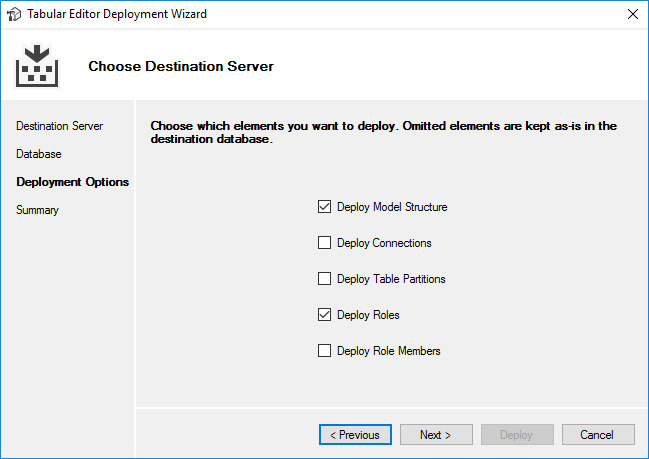
Model > Deploy... opens the deployment wizard, which deploys the loaded model to a server. After you select a server and a database, choose which parts of the model to deploy:
| Option | When cleared |
|---|---|
| Deploy Data Sources | Data sources on the target database stay as they are. The deployment fails if a table uses a data source that doesn't exist on the target. |
| Deploy Table Partitions | Partitions on the target stay as they are, and so does their data. |
| Deploy partitions governed by Incremental Refresh Policies | Partitions created by incremental refresh stay as they are. Requires Deploy Table Partitions. |
| Deploy Shared Expressions | Shared expressions on the target stay as they are. Requires compatibility level 1400 or higher. |
| Deploy Roles | Roles on the target stay as they are. |
| Deploy Role Members | Role members on the target stay as they are. Requires Deploy Roles. |
Deploy Model Structure is always selected when the target is an existing database. The other options are selected by default when the model contains that type of object, and Deploy Roles when the model contains role members. If the database doesn't exist yet, the wizard deploys data sources, partitions and shared expressions with the model, and only the role options apply. The summary page also has Export Build... to write deployment files for the Analysis Services Deployment Wizard and TMSL Script to show the deployment as a TMSL script.
Command line
TabularEditor.exe runs deployments, scripts and Best Practice Analyzer checks from the command line. The following examples deploy a model:
TabularEditor.exe c:\Projects\Model.bim
Opens Tabular Editor 2 and loads the Model.bim file without deploying anything.
TabularEditor.exe c:\Projects\Model.bim -deploy localhost AdventureWorks
Creates the AdventureWorks database on the Analysis Services instance on localhost, without opening the user interface. If the database already exists, the deployment fails.
TabularEditor.exe c:\Projects\Model.bim -deploy localhost AdventureWorks -O -P -R -M
Overwrites the existing AdventureWorks database, including its partitions, roles and role members.
Add these switches after the database name to control what the deployment overwrites:
-Ooverwrite an existing database-Coverwrite data sources (connections)-Poverwrite partitions-Yskip partitions with incremental refresh policies (with-P)-Soverwrite shared expressions-Roverwrite roles-Moverwrite role members (with-R)
Without these switches, data sources, partitions, shared expressions and roles on the target stay as they are. Command Line (Tabular Editor 2) lists every switch, including scripts, Best Practice Analyzer checks and output for Azure DevOps and GitHub Actions.
Note
TabularEditor.exe is a Windows Forms application, so a command-line call returns before the deployment finishes. In a batch job that waits for the deployment, use start /wait:
start /wait TabularEditor.exe c:\Projects\Model.bim -deploy localhost AdventureWorks
The Tabular Editor CLI runs on Windows, macOS and Linux and accepts most TabularEditor.exe switches. See Migrating from the TE2 Command Line.
C# scripting
The C# Script tab runs C# code against the loaded model. Use it to apply the same change to many objects at once. Scripts have access to two objects:
Selectedholds the objects selected in the tree.Modelholds the entire Tabular Object Model.
The script editor has basic IntelliSense:
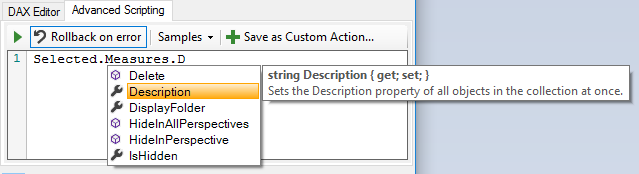
Tabular Editor 2 calls this feature Advanced Scripting. See Advanced Scripting for the scripting API and examples.
Feature comparison
The table compares Tabular Editor 2, Tabular Editor 3 and the Tabular Editor CLI:
| TE2 (Free) | TE3 (Commercial) | TE CLI (Preview) | |
|---|---|---|---|
| Edit all TOM objects and properties | ✔ | ✔ | ✔ |
| Batch editing and renaming | ✔ | ✔ | ✔ |
| Copy/paste and drag/drop support | ✔ | ✔ | |
| Undo/redo data modeling operations | ✔ | ✔ | |
| Load/save model metadata to disk | ✔ | ✔* | ✔ |
| Save-to-folder | ✔ | ✔* | ✔ |
| Built-in DAX formatting | ✔ | ||
| Advanced data modeling (OLS, Perspectives, Calculation Groups, Metadata Translations, etc.) | ✔ | ✔* | ✔ |
| Syntax highlighting and automatic formula fix-up | ✔ | ✔ | |
| View DAX dependencies between objects | ✔ | ✔ | ✔ |
| Table Import Wizard | ✔ | ✔ | |
| Deployment Wizard | ✔ | ✔* | ✔ |
| Best Practice Analyzer | ✔ | ✔ | ✔ |
| C# scripting and automation | ✔ | ✔ | ✔ |
| Use as External Tool for Power BI Desktop | ✔ | ✔ | |
| Connect to SSAS/Azure AS/Power BI Premium | ✔ | ✔* | ✔ |
| Command-line interface | ✔ | ✔ | |
| Customizable user interface with high-DPI, multi-monitor and theming support | ✔ | ||
| DAX editor with IntelliSenseTM-like auto-complete and parameter info | ✔ | ||
| Offline DAX syntax checking and column/data type inference | ✔ | ✔ | |
| Improved Table Import Wizard and Table Schema Update check with Power Query support | ✔ | ||
| DAX querying | ✔ | ✔ | |
| Table preview and Pivot Grids | ✔ | ||
| Create diagrams for visualizing and editing table relationships | ✔ | ||
| Execute data refresh operations | ✔* | ✔ | |
| C# macro recorder | ✔ | ||
| Edit multiple DAX expressions in a single document using DAX scripting | ✔ | ||
| VertiPaq Analyzer integration | ✔ | ✔ | |
| DAX debugger | ✔ | ||
| Metadata Translation Editor | ✔ | ||
| Perspective Editor | ✔ | ||
| Table Groups | ✔ | ||
| DAX Optimizer Integration | ✔ | ||
| Code Actions | ✔ | ||
| DAX User-Defined Functions (UDFs) Assistance, Code Action and Namespaces | ✔ | ||
| Calendar Editor for enhanced time intelligence | ✔ | ||
| DAX Package Manager | ✔ | ||
| Built-in Best Practice Analyzer rules | ✔ | ||
| Advanced Refresh dialog with refresh override profiles (Business/Enterprise Edition) | ✔* | ||
| Save with supporting files for Fabric | ✔ | ||
| Semantic Bridge for Databricks Metric Views (Enterprise Edition) | ✔* | ||
| Localization support (Chinese, Spanish, Japanese, German, French) | ✔ | ||
| Administrator policies for governing the product across an organization | ✔** | ✔* | ✔** |
| AI Assistant for model design, DAX authoring and scripted edits | ✔ | ||
| MCP server for AI agents | ✔ | ||
| Unsaved change indicators with per-property and per-object revert | ✔ | ||
| Semantic model testing (assertions, snapshots, A/B comparison) | ✔ | ||
| Cross-platform (Windows, macOS, Linux) | ✔ | ||
| Structured output (JSON, CSV, TMDL, TMSL) for scripting and AI agents | ✔ | ||
| CI/CD integration with GitHub Actions and Azure DevOps annotations and VSTEST results | ✔ | ||
| Interactive shell (REPL) with shell completions | ✔ |
*Note: Limitations apply depending on your Tabular Editor 3 edition.
**Note: Only some policies apply: Tabular Editor 2 reads only the legacy registry key, and the Tabular Editor CLI reads policies on Windows only. See Policies.
Next steps
- Migrating from Tabular Editor 2.x describes the feature differences between Tabular Editor 2 and Tabular Editor 3.
- Installation and Activation covers installing Tabular Editor 3 and starting the free trial.
- AI Agent Skill installs a skill that teaches AI coding agents the Tabular Editor CLI commands.